Course aims
Source: Period End Procedures, p.2
Key topics in depth
These five topics were pulled out in full because they directly back up existing bank reconciliation, inventory, and reporting content on the Hub.
Company Data Auditor
Source: Period End Procedures, p.11
Bank Reconciliation Procedures
Source: Period End Procedures, p.19
Printing a Period-End Inventory Valuation Reconciliation Report
Source: Period End Procedures, p.38
Reviewing Income Statement & Balance Sheet Accounts
Source: Period End Procedures, p.52-53 & p.57
Fiscal Year-End Considerations
Source: Period End Procedures, p.67 & p.69
Full walkthrough (complete: p.1-70)
Financial Statements & the Three Concerns of Management
Source: p.6-8
Managers, investors, and creditors rely on financial reports to answer three distinct questions: is there enough cash flow to pay obligations as they come due, is the business profitable for the period under review, and what is its current financial position? The Profit and Loss Statement measures profit performance -- "generating a profit is, unquestionably, the primary responsibility of management. But management responsibility does not end with generating a profit." The Balance Sheet shows financial position/condition -- maintaining assets and liabilities within reasonable limits relative to each other and to sales (the guide's example: a business would never invest 90% of its inventory dollars to support 20% of its sales). The Statement of Cash Flow tracks liquidity -- ensuring cash on hand to meet obligations and avoid defaulting on loans or payroll.
A Statement of Cash Flow tracks cash in-flows (cash sales, receivable collections, loan proceeds, shareholder advances) and cash out-flows (cash purchases, payable payments, loan payments, payroll, equipment purchases, owner withdrawals, dividends) -- but explicitly does not measure profit for the period, and does not reflect the period's change in financial position. Profit excludes things like loan proceeds/payments and equipment purchases (which get amortized over multiple periods, not expensed all at once), and dividends are a distribution of profit already recognized, not a factor in computing it. Likewise, cash flow says nothing about changes in Cash, Receivables, Inventory, or Payables during the period -- a business could improve its bank balance while its financial position quietly deteriorates (e.g. by consuming half its inventory and running up Accounts Payable).
Accrual-basis accounting is what makes the Profit & Loss Statement and Balance Sheet reliable: it includes receivables from completed-but-unpaid sales and liabilities for incurred-but-unpaid expenses. The guide's core insight for period-end work: "the 'changes' in the Balance Sheet from one point-in-time to another, will exactly agree with the net profits (or losses) reported on the Profit and Loss Statement for the same period of time." Because the Profit & Loss Statement results mostly from internally-generated transactions that are harder to verify against outside sources, while the Balance Sheet has a direct correlation to outside/subsidiary information (bank statements, vendor statements, receivables/payables/inventory subsidiary reports), the recommended strategy is to focus period-end verification effort on the Balance Sheet: "Verifying the Balance Sheet will absolutely verify bottom-line profit presented on the Profit and Loss Statement."
On reading the Profit & Loss Statement itself: reports can be viewed at multiple levels of detail (a Level 2 statement can show contribution to Total Sales and Gross Margin by category at a glance; a Level 3 statement can show whether combined Payroll Expenses are in an acceptable ratio to sales, or whether Variable/Fixed Expenses are tracking to objectives), with any unusual balance investigated by drilling into a higher-detail statement, Find Transactions, an Account Inquiry, or a Trial Balance Detail report. On the Balance Sheet: the most significant accounts are directly verifiable against outside sources -- bank/credit card/loan balances against statements, Accounts Payable against vendor statements, and Receivables/Payables/Inventory against AccountEdge's own subsidiary Command Center reports. Remaining, lower-activity accounts should simply be reviewed for reasonableness.
Company Data Auditor: File Overview & Account Reconciliation Review
Source: p.11-12
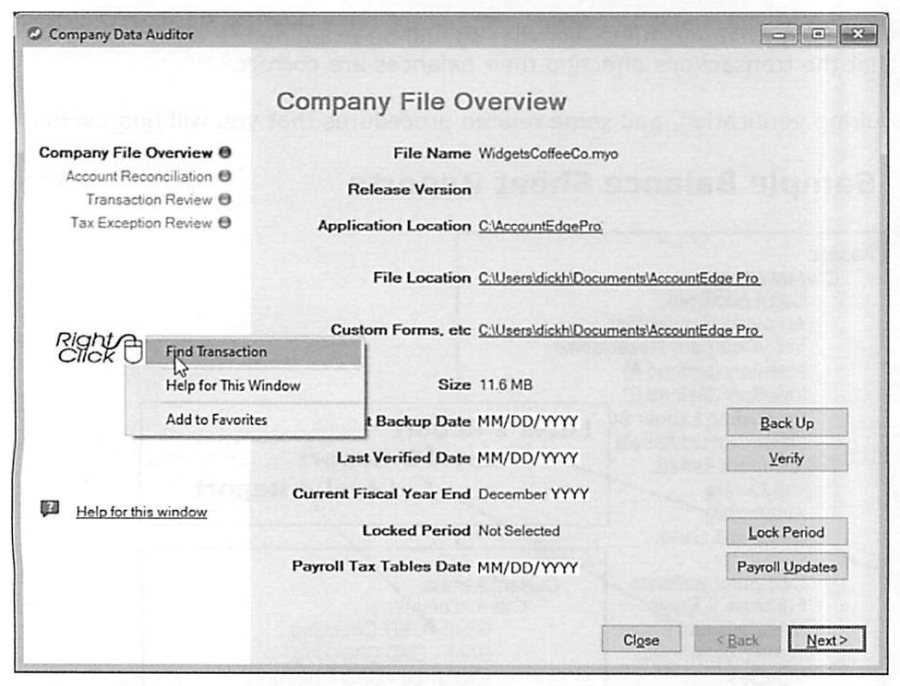
Accounts » Company Data Auditor is described as "the recommended first step to proper Period End Procedures" -- more than a convenient window to familiar tools, it provides new functionality (Transaction Review, Tax Exception Review) while streamlining others. The Company File Overview screen shows the file name, release version, file/custom-forms locations, file size, last Backup Date and last Verified Date (flagged as critical -- "your only defense against potential loss of your entire company file"), current fiscal year end, any Locked Period, and the Payroll Tax Tables date -- each with a one-click action button (Back Up, Verify, Lock Period, Payroll Updates) to address what needs attention.
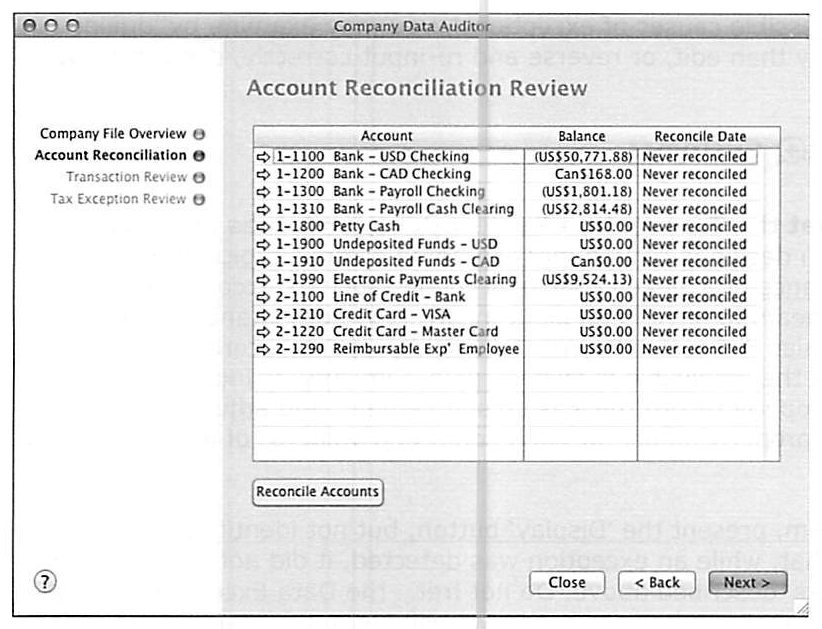
The Account Reconciliation Review lists every Bank and Credit Card account with its current balance and last-reconciled date -- select an account and click Reconcile Accounts directly from this screen. The guide's framing: bank/credit-card reconciliations should happen throughout the month as statements arrive or become available electronically, and this review screen exists purely to give a quick "are we actually doing this on a timely basis" check.
Company Data Auditor: Transaction Review Process
Source: p.12-14
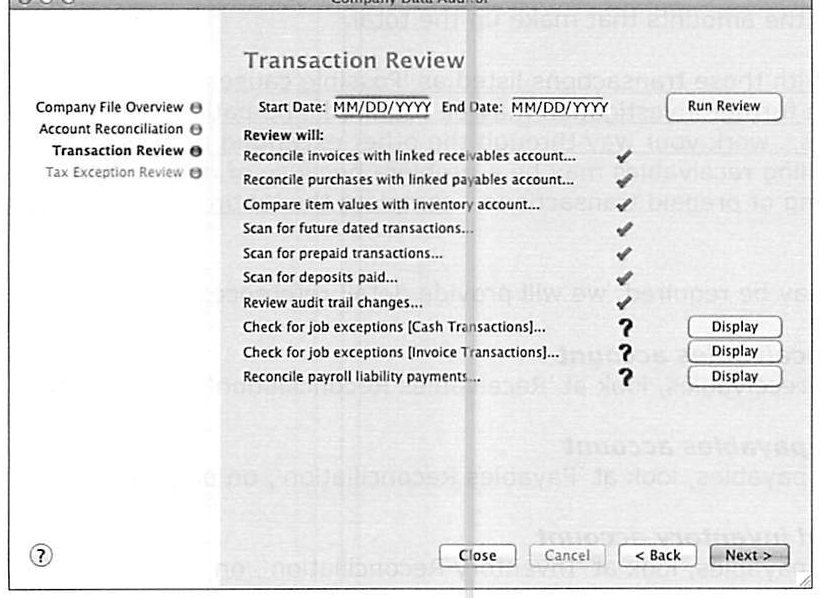
Set a date range and click Run Review to have AccountEdge reconcile invoices against the linked receivables account, purchases against the linked payables account, and item values against the linked inventory account; scan for future-dated transactions, prepaid transactions, and deposits paid; review audit trail changes; and check for job exceptions (cash and invoice) and payroll liability reconciliation. Exceptions are flagged with a question mark and a one-click Display button for underlying detail.
Four important caveats about what the review does and doesn't do: (1) it may flag an exception without identifying the suspect transaction -- that just means the error fell outside the "most common errors" pattern it's designed to catch (e.g. using Receive Money instead of Receive Payments records the cash correctly but doesn't mark the invoice paid; using Spend Money to record an inventory purchase records the cash and asset value but doesn't adjust on-hand item counts); (2) exception reports are summary in nature and don't replace full reconciliation reports -- a Receivables exception report shows the total imbalance and possible causal transactions, not a per-customer detailed listing; (3) if a discrepancy remains after resolving the listed "possible causes," work through the other exception reports methodically before concluding something is wrong -- a receivables mismatch, for instance, might actually stem from mishandled customer deposits or prepaid transactions; (4) more detailed reconciliation procedures for receivables, payables, and inventory are covered later in this same guide.
On future-dated and prepaid transactions specifically: both are described as inconsistent with accounting's inherently historical perspective and shouldn't exist in a properly-configured file. The common reason people create them is as a workaround for recording customer/vendor deposits -- but AccountEdge is designed to handle both automatically via the linked Customer Deposits / Vendor Deposits accounts (set up under Setup » Linked Accounts » Sales/Purchases Linked Accounts, "track deposits collected from customers" / "track deposits paid to vendors"). The correct deposit workflow: (1) create the sale or purchase as an Order (not a Quote or Invoice/Bill); (2) apply the payment while it's still an Order -- AccountEdge recognizes the Order status and posts the payment to the deposit account automatically; (3) when the Order is later converted to an actual Invoice or Bill, AccountEdge automatically withdraws the prepayment from the deposit account and applies it to the completed sale/purchase, dated as of the conversion.
The Audit Trail (Setup » Preferences » Security » Use Audit Trail Tracking) logs changes to transactions, tax entries, accounts, payroll, and system settings -- date, User ID, transaction ID, description, original date, and status -- viewable by date, User ID, or entry order via Reports » Accounts » Audit Trail » Audit Trail Report. It's not retroactive (tracking starts and stops the instant the preference is toggled, so access to that preference itself should be password-restricted), it adds to file size and can affect multi-user performance, and it "is not a 'silver bullet'... it is just one tool among many" that has to sit inside a broader risk-management approach alongside passwords and other security preferences. The guide still recommends turning it on: "a thoughtful and regular review, combined with corrective changes to training and operating process, will eventually 'contain' the number of 'audit-worthy' transactions." Note the report doesn't support drilling down to the underlying transaction -- use Find Transactions separately for that. Job Exceptions reports (Cash Transactions / Invoice Transactions) surface transactions missing a Job Number allocation; Payroll Liabilities Exception is covered in the Payroll training guide.

Company Data Auditor: Tax Exception Review & Finalizing the Audit
Source: p.15-18
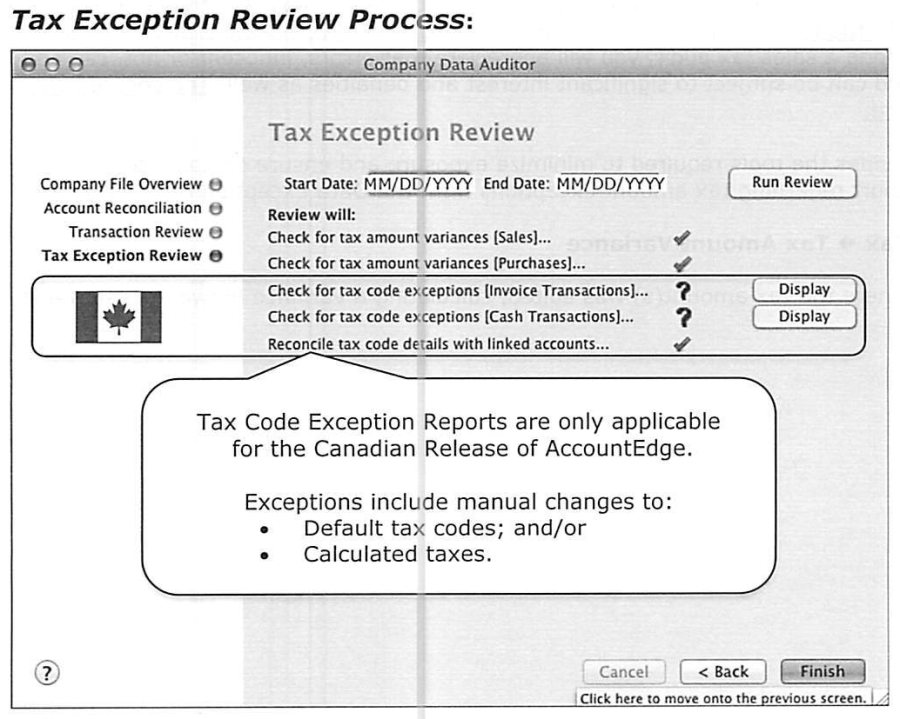
The Tax Exception Review checks for tax amount variances on Sales and Purchases, and (Canadian release only) tax code exceptions on Invoice and Cash transactions plus reconciliation of tax code details against linked accounts. Getting a clean result depends on three prerequisites: sales tax codes properly set up and correctly linked (Lists » Tax Codes); every inventory item or time-billing activity correctly flagged taxable/non-taxable when bought or sold (with the correct Sales Tax selected in the Canadian version); and correct tax codes on the Profile tab of every Customer/Vendor card. The guide is blunt about the stakes: "owners or directors may be held personally liable for deficiencies in assessing sales taxes," and even a properly-configured file can have legitimate exceptions worth zooming into and editing -- rounding discrepancies against a manually-prepared invoice, or genuine exceptions like packaging supplies on an otherwise tax-exempt resale invoice that are taxable because the customer is the actual end-user for that line.
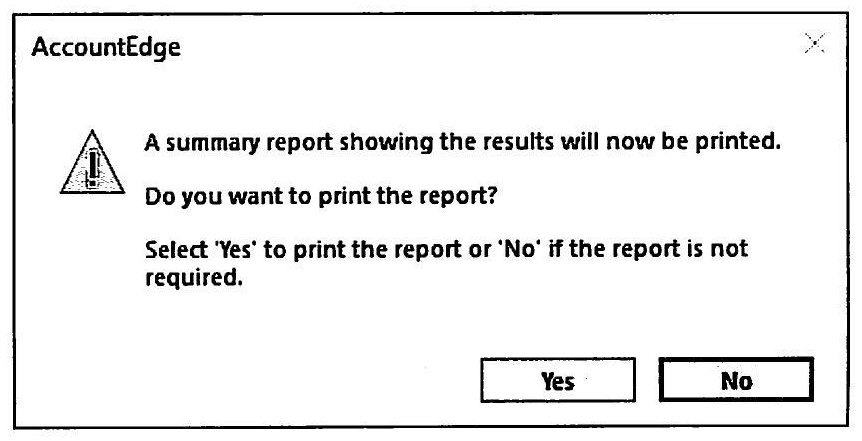
To finalize the audit: after investigating and resolving flagged issues, re-run both the Transaction Review and Tax Exception Review to confirm resolution. Some items (audit trail changes, tax amount variances within acceptable limits) will still show up even after correction -- that's expected. Clicking Finish prompts to print a summary report, which the guide recommends printing and retaining "to document completion and results."
Bank Reconciliation Procedures: Setup & Common Causes of Imbalance
Source: p.18-20
The guide recommends following its explicit procedure closely for your first reconciliation, then adapting as you develop your own rhythm. Common causes of an out-of-balance result: transactions not checked as cleared (or mistakenly checked); a bank statement transaction never entered into the company file; an incorrect New Statement Balance entry; entered amounts disagreeing with the actual statement (tip: if the out-of-balance amount is evenly divisible by 9, suspect a transposed digit -- e.g. 28 entered as 82, since the difference of reversed digits is always divisible by 9); or, simply, a bank error. Uncleared items outstanding from before conversion can't be checked off in the reconciliation window -- their effect should already be reflected in the opening bank balance as of the conversion date; a few such items should be verified against the old records and entered/reconciled as current transactions if missing, and this situation shouldn't persist more than about two months post-conversion. Checks stale-dated over six months represent a real risk exposure and should be handled with a bank stop-payment plus a recorded/reconciled reversal and a replacement check. Trick: exiting Reconcile Accounts without finishing leaves already-checked items marked, so you can resume later without redoing that work.
Bank Reconciliation Procedures: Step by Step
Source: p.20-27
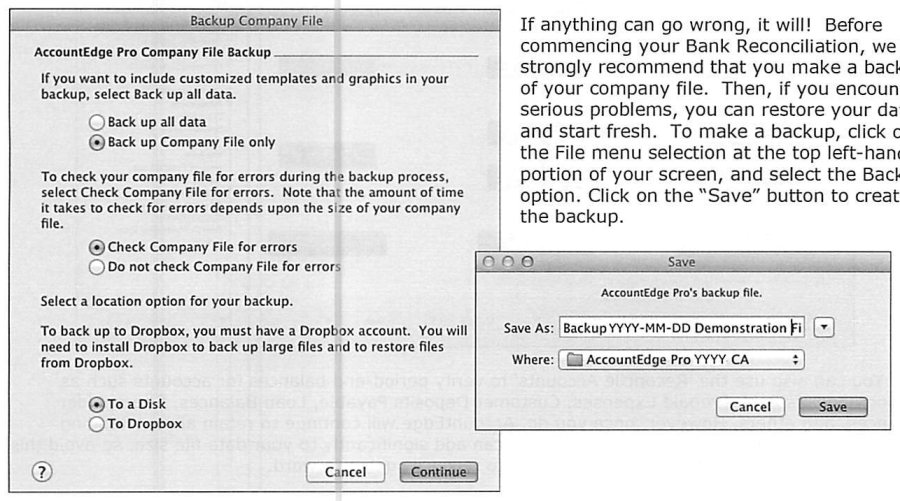
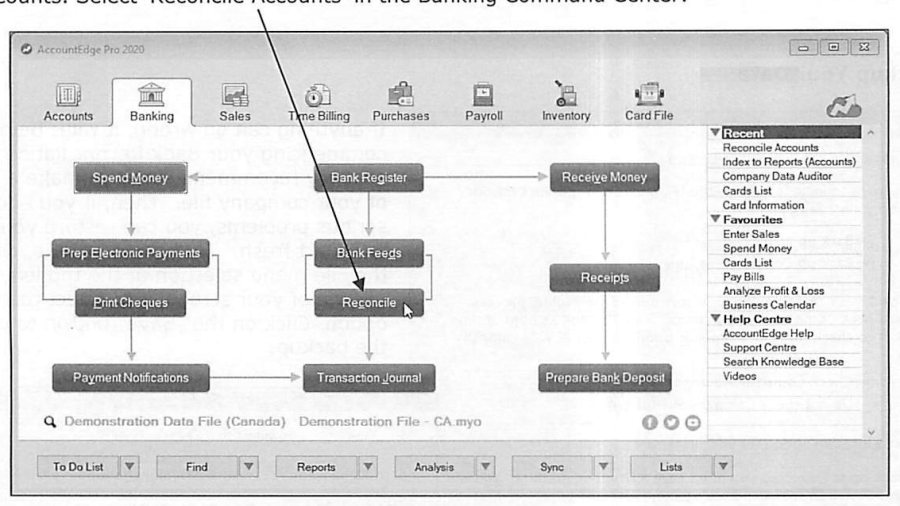
The full recommended sequence: (1) Backup your data first, so a serious problem can be resolved by restoring and starting fresh. (2) If there are outstanding pre-conversion checks/deposits not yet entered, enter them (procedures covered in Setting It Up Properly) -- trick: post-conversion transactions should be dated no earlier than the 2nd of the conversion month, to keep pre-conversion outstanding items cleanly reconcilable. (3) Open Reconcile Accounts in the Banking Command Center (also usable for period-end verification of Vendor Deposits, Prepaid Expenses, Customer Deposits, and loan balances -- though the guide cautions this retains all outstanding unreconciled transactions until reconciled, adding to file size, so use it selectively). (4) Select the account and enter the statement date and New Statement Balance -- if this account has been reconciled before, enter the previous statement's date/balance first to confirm records still agree (if not, something reconciled was later modified -- reconcile to the prior statement before proceeding; if you can't find the discrepancy, Undo Reconciliation and redo prior statements one at a time -- caution: Undo Reconciliation cannot itself be undone, so back up first). If the bank's statement date differs from your desired period-end date (common at fiscal year-end), reconcile in two passes: verify transactions through month-end separately from the balance to the actual statement date, keeping source documents split accordingly.
(5) Print a Reconciliation Report before starting -- makes it easier to spot mis-marked or mis-posted items. (6) Verify the bank statement: match every check/memo against its statement entry and mark both as cleared (a photocopy of the statement keeps the original available for audit); deposits, recurring transactions, and bank charges are typically unmarked at this stage and get handled next. (7) Enter variable Bank Entries (service charges, interest charges, overdraft/returned-check/ATM charges, and interest paid by the bank) via the Bank Entry icon -- zooming into a Bank Entry actually opens the underlying Receive Money (interest earned) or Spend Money (service charges) transaction. (8) Enter fixed recurring charges or deposits (lease payments, insurance, rental income not run through Sales) as a Journal Entry/Spend Money/Receive Money set up once and then saved as Recurring, with its own name, frequency, alert options (notify or auto-record on a User ID), and transaction ID handling.
Bank Reconciliation Procedures: Marking Cleared Items & Closing Out
Source: p.23-28
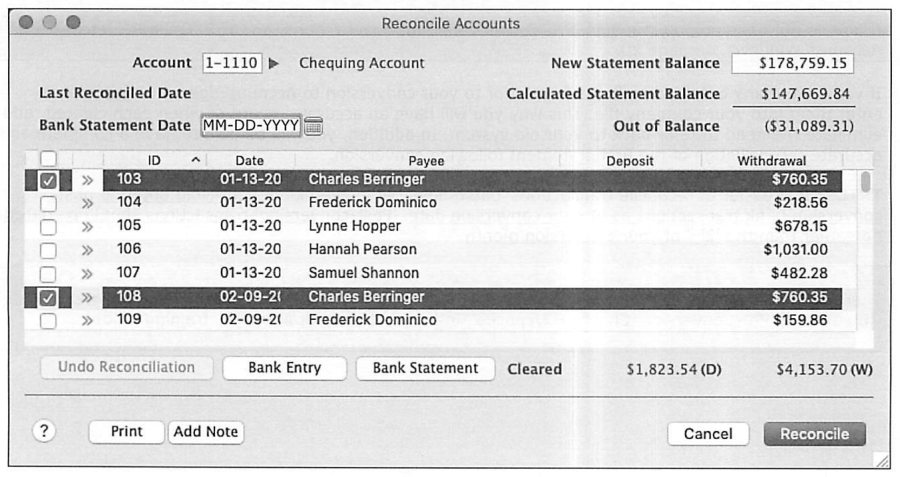
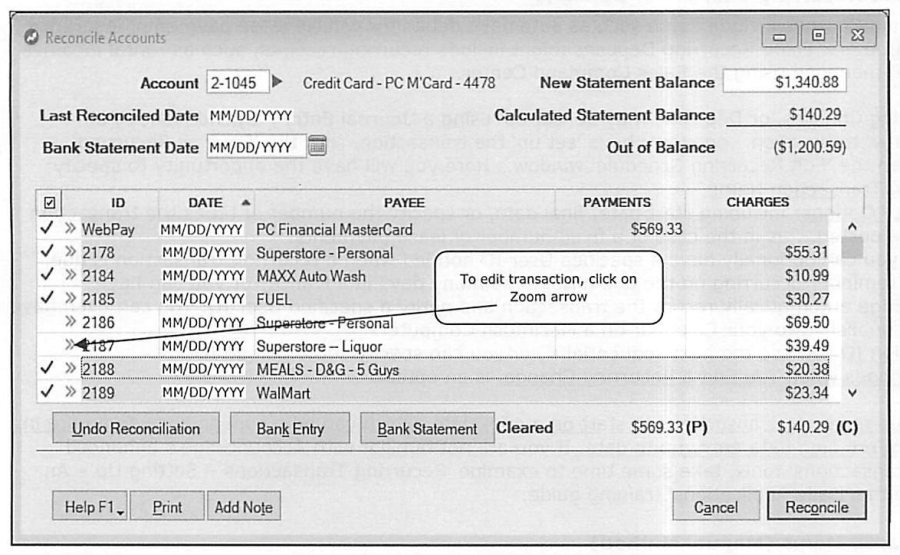
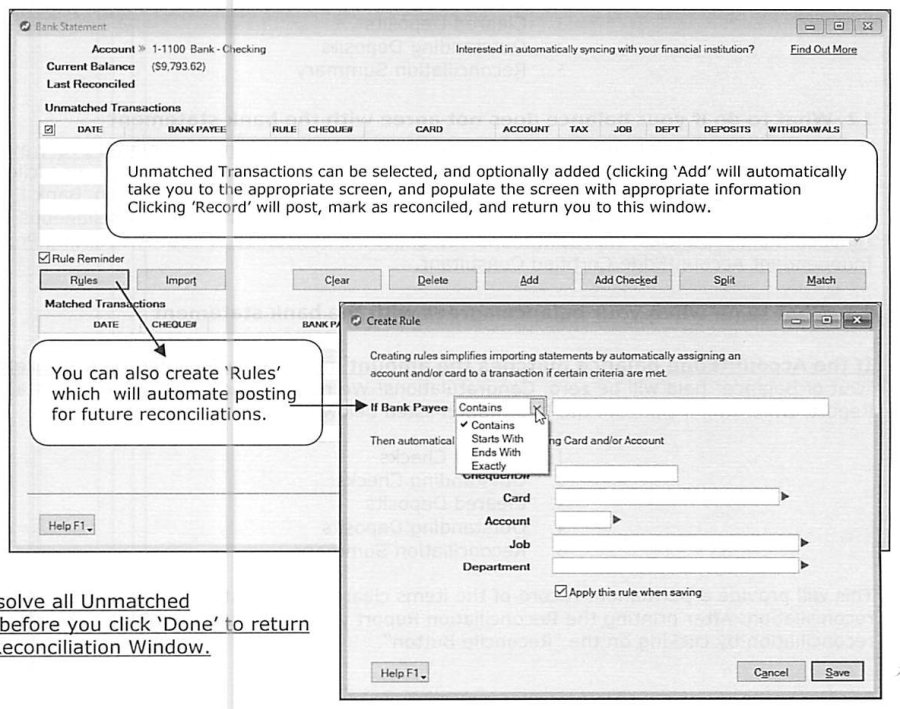
(9) Mark cleared items manually if not banking electronically: sort canceled checks by check number (other documents by date) -- trick: prefix handwritten check numbers with "M" so they group and can be verified more stringently (number, amount, and payee) separately from computer-generated checks; sort the Reconcile Accounts window by ID# to match; mark every cleared check in the check column (clicking anywhere on a row toggles its mark, so watch cursor placement, especially near the scrollbar); re-sort by date and mark cleared "memo" items (recurring charges, misc. bank fees) and any remaining unchecked statement items (deposits, recurring transactions), entering any transactions that weren't already in the file as you go. (10) Mark cleared items electronically if your bank supports downloadable statement files (OFX, QFX, QIF, OFC -- tip: use a dedicated subfolder with a naming convention like "Bank-MM-DD-YYYY"): click Bank Statement, browse to the file, and AccountEdge auto-matches and clears most transactions, presenting only genuinely Unmatched Transactions for review/Add/Record -- "Rules" can be created to auto-assign accounts/cards to recurring transaction patterns for future imports.
(11) Check the Out of Balance figure: zero means done -- go to step 13. AccountEdge computes a Calculated Statement Balance from marked-cleared transactions and compares it to the entered New Statement Balance. (12) If it doesn't agree, and you've exhausted every avenue to find the source, post an adjusting entry via Bank Entry to something like "Cash Over/Short" for small amounts -- for significant discrepancies, enlist your accountant or Certified Consultant. (13) When it does agree, print a Reconciliation Report (Cleared Checks, Outstanding Checks, Cleared Deposits, Outstanding Deposits, Reconciliation Summary) as a permanent record, then click Reconcile to complete. (14) Print a "Final" Reconciliation Statement afterward, listing only items still outstanding -- important because modifying a previously-reconciled transaction later can cause it to reappear and disrupt future reconciliations, and this final report is your reference for resolving that. Print an extra copy for the tax accountant if this reconciliation lands on a fiscal year-end. Repeat the entire process for every detail bank and credit card account.
Undeposited Funds, Electronic Payments Clearing & Payroll Cash Clearing Reconciliation
Source: p.27-28
Any Undeposited Funds account should carry a zero balance immediately after each day's bank deposit is posted -- verify by daily observation and via a Reconcile Accounts pass at least monthly. Even when daily procedure already confirms this, running the reconciliation still matters: it clears out settled transactions, so a stray prior-period posting stands out immediately in the next reconciliation instead of getting buried. The guide notes real client cases of "poor performance" traced to multiple years of receipts and deposits silently outstanding in Undeposited Funds -- failure to reconcile can let this carry forward invisibly at every fiscal year-end. The same logic and cadence applies to the Electronic Payments Clearing account (used for Electronic Payments and Payroll Direct Deposits) and the Payroll Cash Clearing account (used if any payroll is paid in cash -- see the Payroll training guide for setup).
Reimbursable Expense Considerations
Source: p.28-30
Employee reimbursable expenses (company to pay): for businesses where employees routinely incur company expenses, the guide suggests a dedicated detail credit-card-type account, managed the same way as a Petty Cash or Credit Card account -- expenses entered via Spend Money, reimbursement paid by check or combined with the paycheck, both allocated to the employee's detail account. As with any expense, an audit for propriety and adequate documentation is recommended, best managed through Reconcile Accounts.
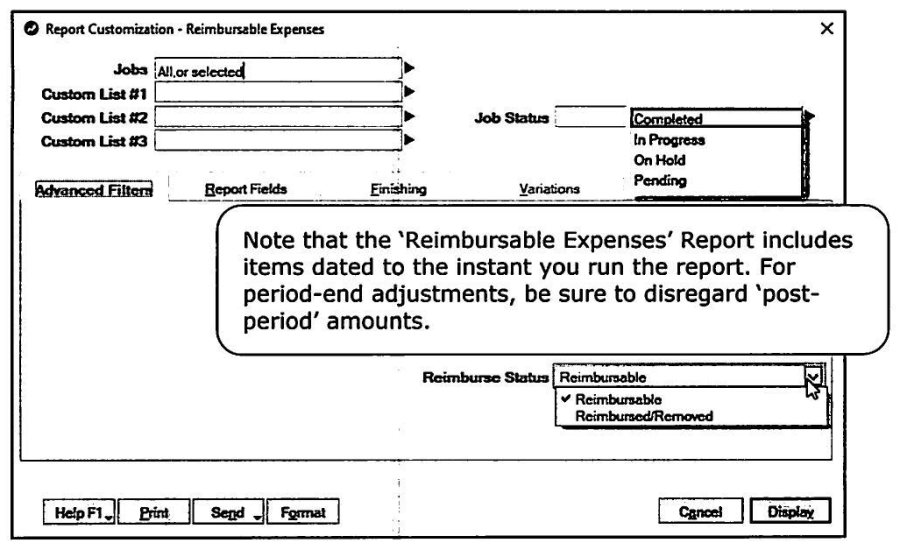
Job reimbursable expenses (customer to pay): for businesses using Job Costing to track customer-billable expenses, the Income Statement will run "out" by the amount of unbilled reimbursable expenses until the customer is actually invoiced. Evaluate what's outstanding via Reports » Accounts » Jobs » Reimbursable Expenses (customizable by Job Status and Reimburse Status -- Reimbursable vs. Reimbursed/Removed; note the report reflects amounts as of the instant it's run, so disregard post-period amounts for a period-end read). If the total won't be invoiced yet, this figure feeds into Work-In-Progress (covered next). If it will be invoiced at month-end, use the report to identify affected customers, then invoice each one via the "Reimburse" button in the Sales window, dated as of the period end being reconciled -- full procedures are in Daily Applications.
Receivables Reconciliation & the Allowance for Bad Debt
Source: p.30-31
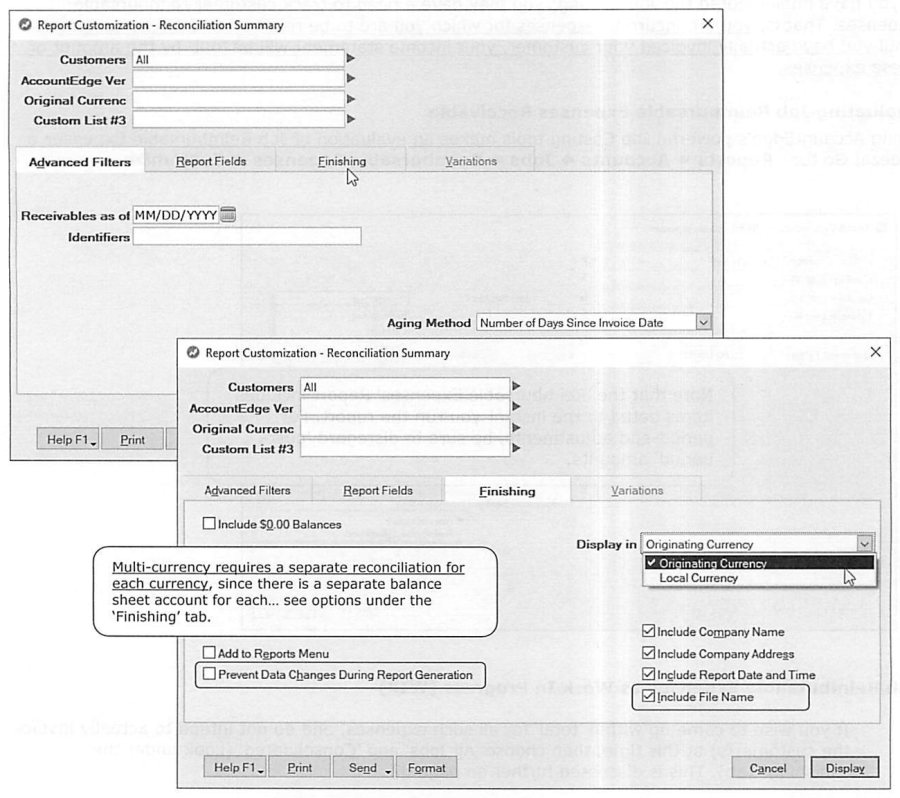
Reports » Sales » Reconciliation Summary, customized to the exact reconciliation date, shows total Accounts Receivable as of that date next to the linked asset account's balance, with any difference calculated automatically (multi-currency businesses need a separate run per currency, since each has its own linked account). The two most common causes of a mismatch: sales or payment transactions dated incorrectly, or sales-order/deposit transactions mishandled (commonly a payment dated before its invoice, which understates the Balance Sheet account relative to the reconciliation report as of that date); or an entry that touched the linked receivables account directly without touching the correct Customer's card. The Company Data Auditor (covered above) is the primary tool for isolating these.
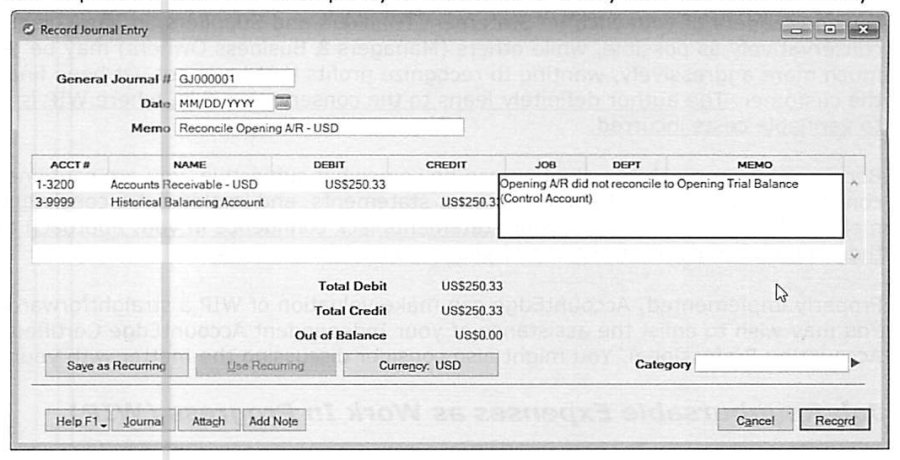
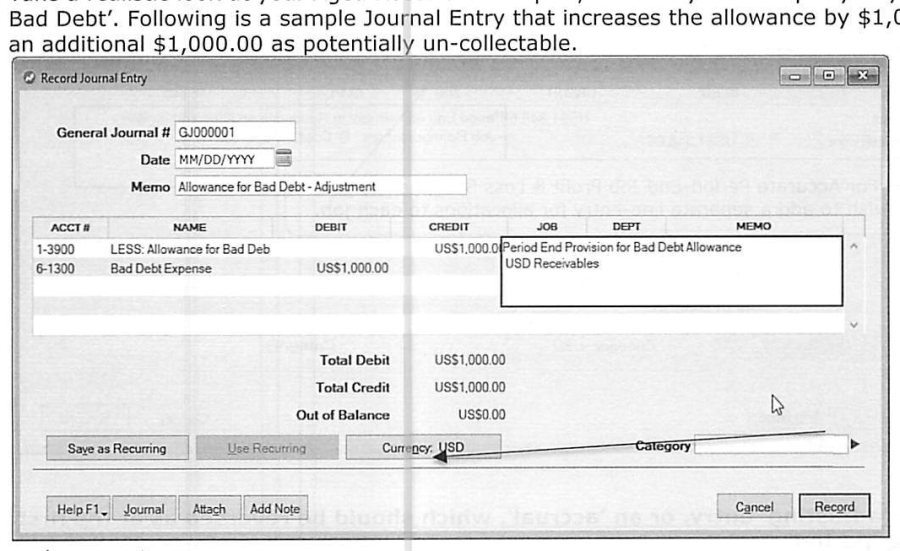
If the source is an incorrect opening balance, display the reconciliation report as of the day before conversion to confirm, then correct either the opening Trial Balance or opening Receivable Balances directly and re-run to verify -- but if you're already past the conversion year (a new fiscal year has already been started), or the error can't be pinpointed, post a Journal Entry between the linked Receivables account and the Historical Balancing Account instead, so the correction doesn't distort current-period operating results. Trick: an asterisk in the date field posts the entry to the 13th period, keeping it out of monthly reports while still reflecting in year-to-date totals. Separately, review the Aged Receivables Report and adjust the Allowance for Bad Debt realistically -- illustrated with a Journal Entry crediting the Allowance and debiting Bad Debt Expense. In multi-currency files, separate journal entries per currency may be needed so Bad Debt Expense (always stated in home currency) reflects the correct exchange rate -- use the Currency icon in the entry to select and confirm the rate for each.
Work-In-Progress (WIP) Considerations
Source: p.32-35
Unbilled Work-In-Progress can materially distort the Income Statement, since related expenses (wages, cost-of-sales) may already be recorded against work that hasn't yet been invoiced -- overstating expenses relative to recognized sales. Different readers value WIP differently: outside readers (bankers, suppliers) tend to want conservative valuation, while managers/owners may be tempted toward aggressive valuation that recognizes profit not yet finalized by invoicing. The guide's own stated bias is conservative -- value WIP solely against verifiable costs incurred -- and stresses using a consistent, verifiable method regardless of which way you lean, since inconsistency erodes outside readers' confidence in the rest of the statements.
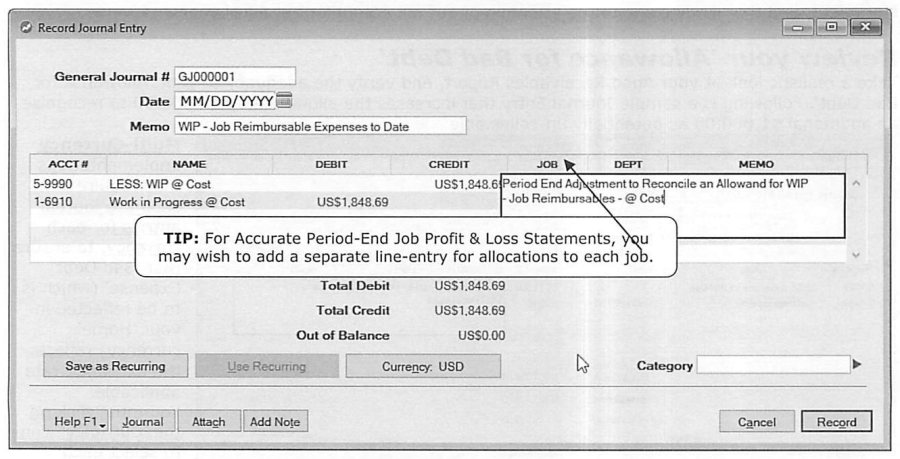
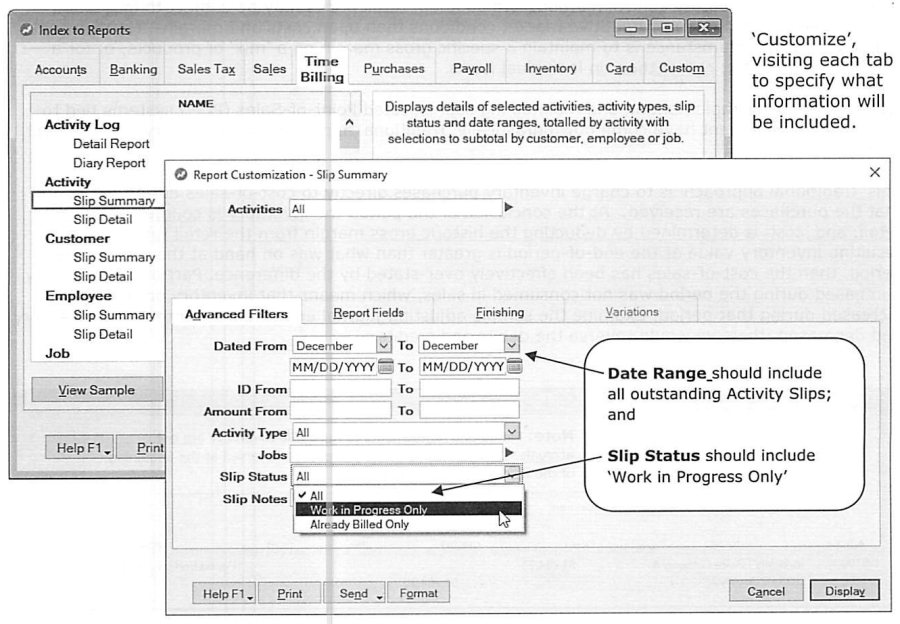
For Job Reimbursable Expenses as WIP, once the total is determined (see above), a Journal Entry debits a WIP asset account and credits a contra "LESS: WIP @ Cost" account for the accrual -- noted as an adjusting/accrual entry that should be reversed as of the first day of the following period, and reps may want a separate line per job for accurate per-job period-end P&L. For Time Billing WIP, the guide again stresses estimated cost, rarely estimated profit, with a handful of standard reports (Activity Slip Summary/Detail by Customer/Employee, filtered to Work-in-Progress-only slip status) doing the heavy lifting once Time Billing was set up with WIP evaluation in mind (see Daily Applications). For inventory-based WIP, consumed raw materials and production labor not yet reflected in finished-goods value can artificially inflate a physical count's apparent "shrinkage" and overstate payroll expense for the period if not accounted for -- full methods are covered in the Professional Inventory Management guide, with a recommendation to involve a Certified Consultant or accountant if unsure.
Inventory Reconciliation
Source: p.34-40
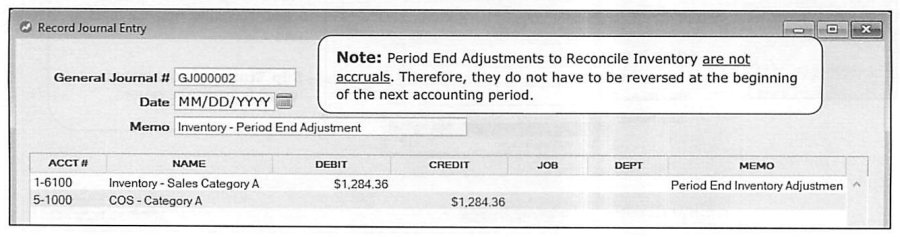
Reconciling inventory means physically counting and valuing stock at a point in time and comparing that to the Balance Sheet's inventory asset account(s); the right approach depends on the business. Retail businesses with large, fast-turning, competitively-priced inventory often use a "traditional" approach instead of full perpetual tracking: charge purchases to cost-of-sales as received, then at period end count inventory at current retail and back into cost by deducting the historic gross margin -- if the resulting counted value is higher than the period's opening inventory, cost-of-sales was effectively overstated (since some purchased inventory wasn't consumed in sales) and a reconciling Journal Entry moves the difference from Cost of Sales back to the Inventory asset account (reversed if the direction is opposite); these period-end inventory adjustments are not accruals and do not need to be reversed at the start of the next period.
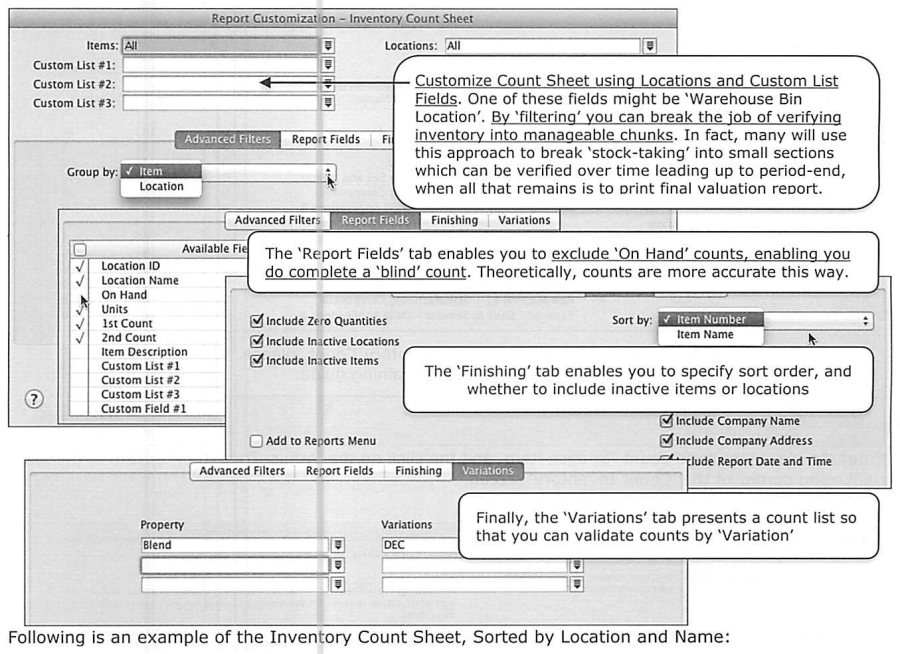
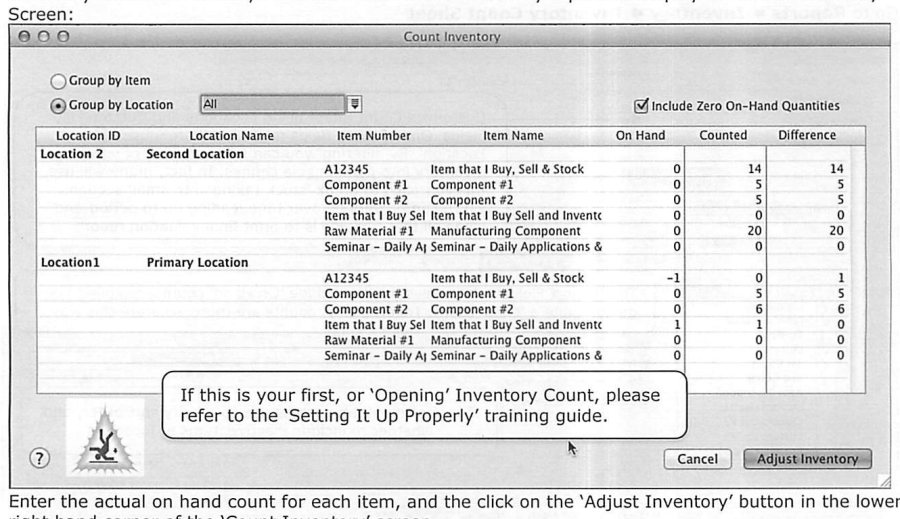
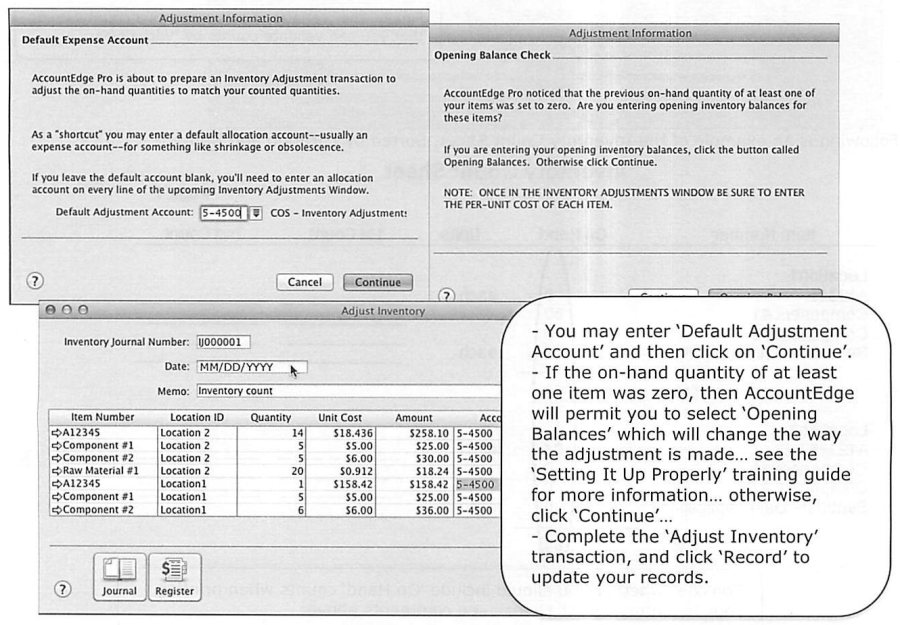
Inventory-based businesses using the Inventory Command Center follow essentially the same opening-count workflow described in Setting It Up Properly: print an Inventory Count Sheet (optionally excluding on-hand counts for a "blind" count, considered more accurate), perform the physical count, then use Count Inventory to enter counted quantities and Adjust Inventory to post the difference -- selecting a Default Adjustment Account (the guide again favors Historical Balancing Account only for a true opening pass; ongoing counts should use a shrinkage/COGS-type account) and, if applicable, choosing "Opening Balances" vs. "Continue" the same way covered in Setting It Up Properly.
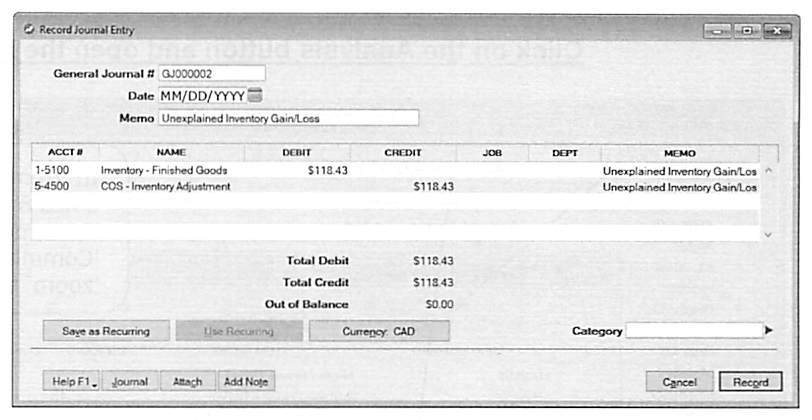
The Inventory Value Reconciliation Report (Reports » Inventory » Items » Inventory Value Reconciliation) goes further than the Company Data Auditor's Exceptions check: it lists every item's on-hand count and current value, subtotaled by inventory asset account with an Out of Balance figure per account, and can include Average Cost, Selling Price, and Buying Price detail. Recommended monthly for most inventory-based businesses, and at minimum at fiscal year-end. If a discrepancy appears, drill from the report into the Items Register, and narrow down the date it first arose by re-running the report as of different past dates since the last known-good reconciliation -- investigate transactions starting the day after the last date it balanced. If no defect in the records can be found, the guide attributes the gap to "human" error outside the accounting system -- receiving errors, shipping/fulfillment mistakes, shoplifting or employee theft, breakage -- and records the unexplained difference via a Journal Entry to an "Unexplained Inventory Gain/Loss" account, with an Allocation Memo for future reference, then prints and retains a Final Reconciliation Report.
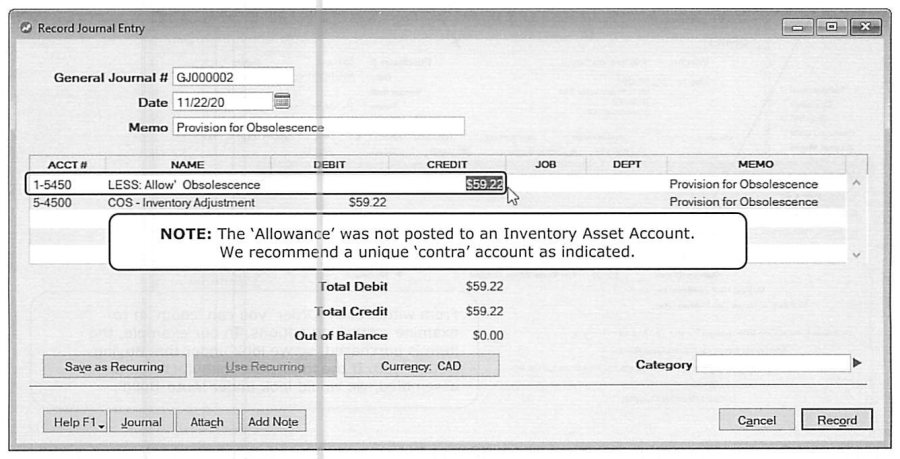
Separately, review inventory for obsolescence: like all assets, inventory should be valued at the lower of cost or net-realizable value, which matters most for seasonal or fashion-driven stock -- a Journal Entry posts a provision to a contra "LESS: Allowance for Obsolescence" account (never directly against the inventory asset account itself) against a Cost of Sales adjustment account.
Reviewing Item Order Status
Source: p.40-42
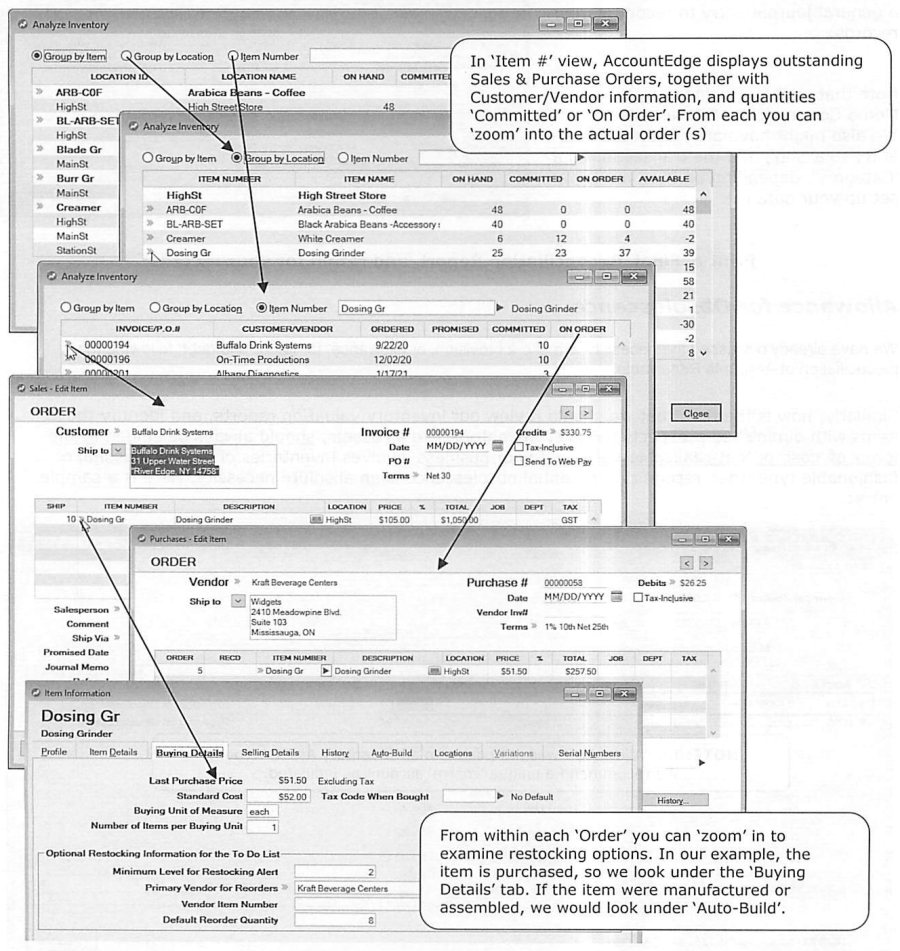
After confirming inventory accuracy, review its adequacy against outstanding Purchase Orders and Sales Orders (including backorders). The Analyze Inventory window, grouped by Item or Location, shows On Hand, Committed, On Order, and Available quantities per item, with zoom-through access into the underlying orders -- from a Purchase Order line, drilling into the item's Buying Details tab surfaces restocking options directly (or the Auto-Build tab, for manufactured/assembled items).
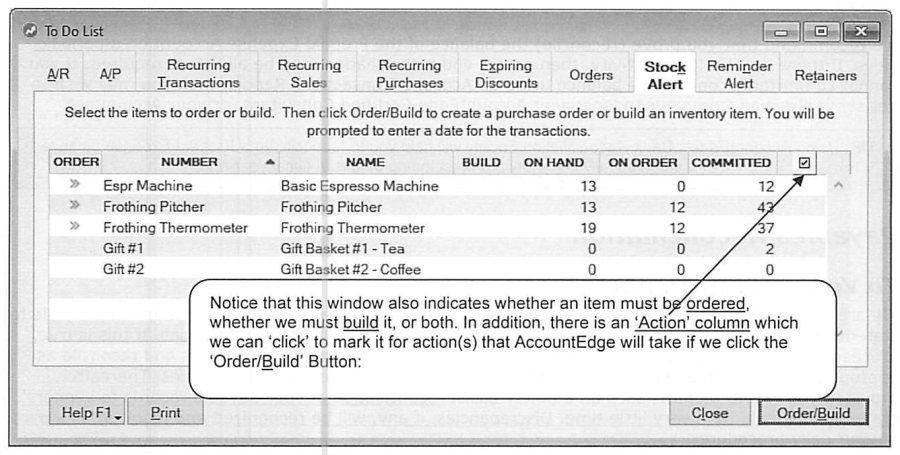
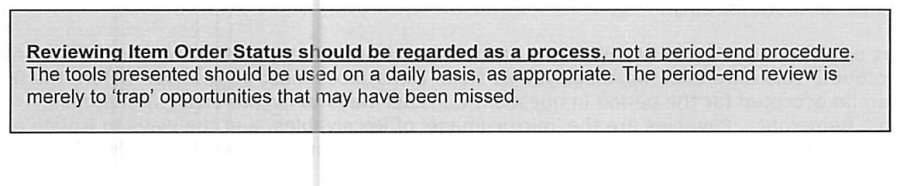
The Stock Alert window (Inventory Command Center's To Do List) lists items needing attention with an "Action" checkbox: marking an item flagged "I Buy" and clicking Order/Build prepares a Purchase Order from its Buying Details restocking information (items for the same vendor get consolidated onto one PO, landing under the Orders tab of the Purchase Register); marking an Auto-Build item takes you directly to the Auto-Build Inventory window to finalize a build quantity; items set up as either Buy or Build require manually choosing via the zoom arrows, since AccountEdge can't determine intent on its own. The guide frames this whole review as an ongoing daily discipline, not strictly a period-end task -- period-end review just exists to "trap opportunities that may have been missed."
Prepaid Expense & Payables Reconciliation
Source: p.42-44
Prepaid Expenses represent a disbursement that benefits future periods -- effectively a "deposit" into an asset account, expensed in portions over the prepayment period. The guide recommends periodically proving the account balance (year-end may be sufficient if there's little activity); AccountEdge's Bank Reconciliation facility can be used against a Prepaid Expenses account to help reconcile it and automatically carry forward outstanding detail at fiscal year-end.
Payables reconciliation mirrors receivables. Against vendor statements: assuming payable details are routinely compared to statements received (if not, expect the first month or two to be slower while discrepancies get trapped), reconciliation should become fast once purchases are recorded promptly -- and printing AccountEdge-generated checks with a detailed remittance stub effectively shifts the reconciliation burden onto the vendor, since they'll have everything needed to flag their own discrepancies. Against the Balance Sheet: Reports » Purchases » Payables » Reconciliation Summary, customized to the exact date (separately per currency if multi-currency), compares total Accounts Payable to the linked liability account -- error-isolation techniques mirror the receivables process covered above.
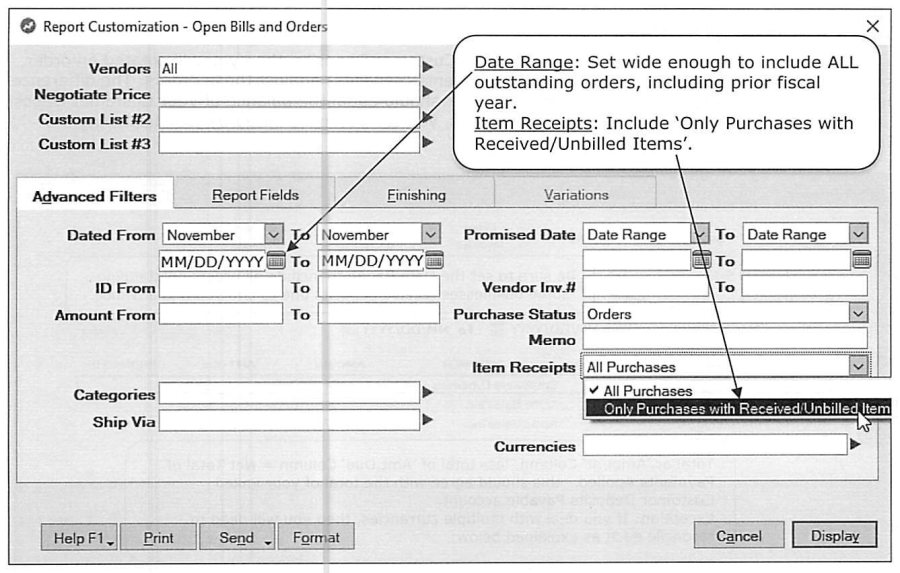
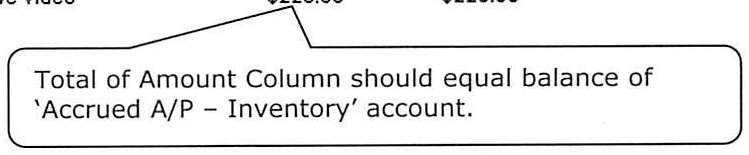
If receiving items before their Vendor Bill is processed, AccountEdge posts an accrued amount to a dedicated "Accrued A/P -- Inventory" account, valued at historical average or standard cost depending on Inventory Preferences. Reconcile this via Reports » Index to Reports » Purchases » Purchase Register [Open Bills & Orders], customized to a wide date range and filtered to "Only Purchases with Received/Unbilled Items" -- the report's total Amount column should equal the Accrued A/P -- Inventory balance (run separately per currency if that account is split by currency).
Customer Deposit Reconciliation
Source: p.44-48
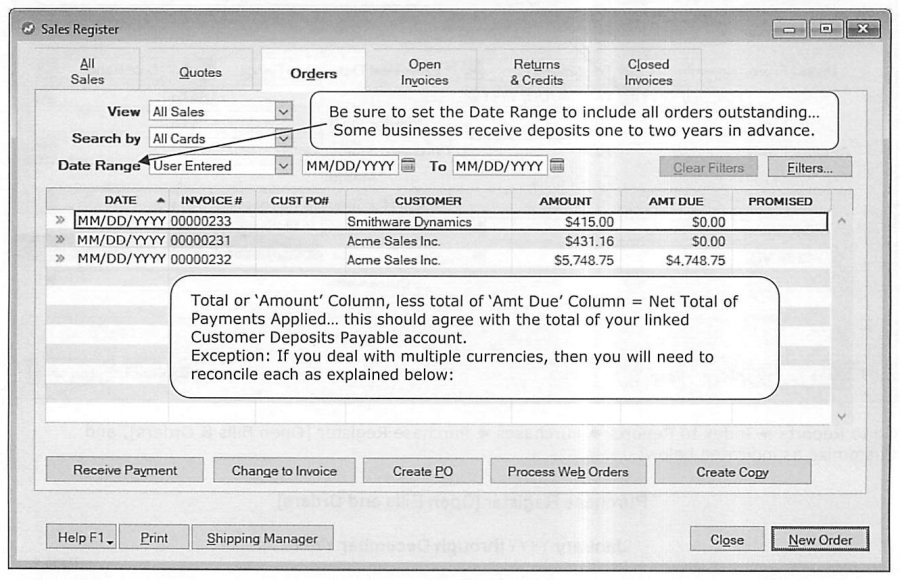
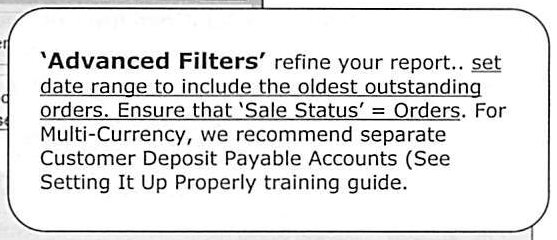
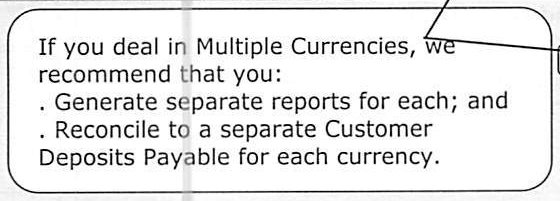
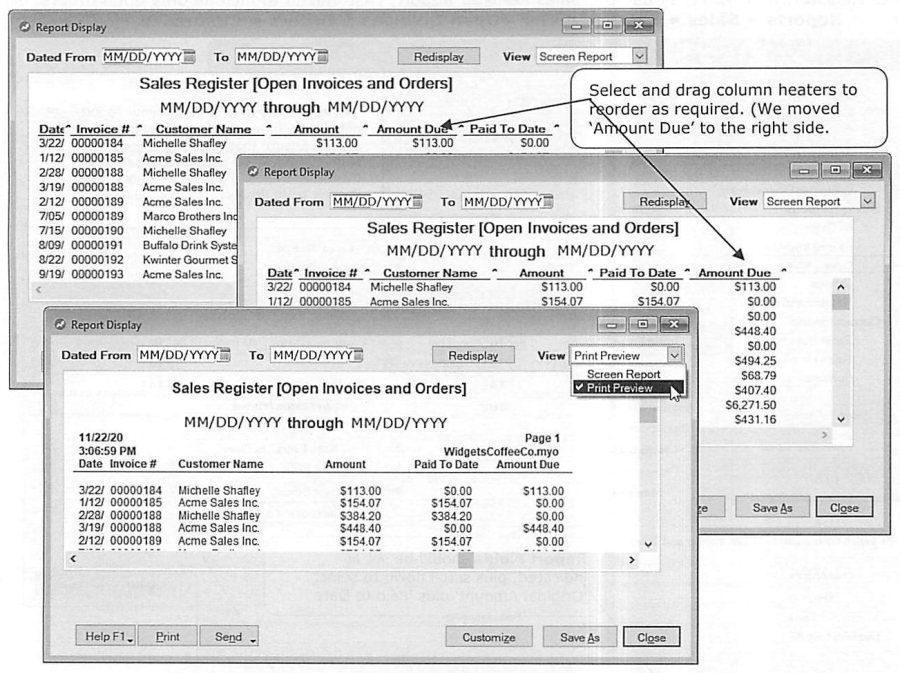
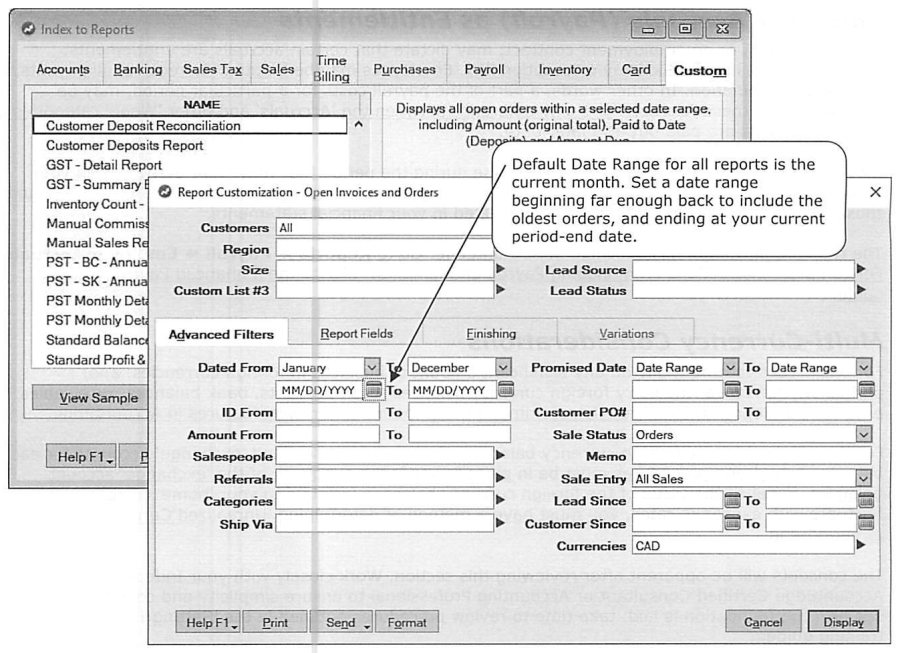
If the business regularly takes customer deposits, reconcile the Customer Deposit Payable account each period. When set up correctly (an Order created for each pending sale, with payments applied against the Order), the difference between total Amount and total Amount Due across open Orders should equal the Customer Deposit Liability balance. For a small number of open orders, this can be checked by simply displaying Sales Register » Orders with the date range set wide enough to include every outstanding order (some businesses hold deposits a year or more in advance) and comparing totals. For a larger volume, use the customizable Sales Register Report (Open Orders) (Reports » Sales » Sales Register » Open Invoices & Orders), filtered to Sale Status = Orders with Advanced Filters set for the full date range -- multi-currency businesses should generate a separate report, and maintain a separate Customer Deposits Payable account, per currency.
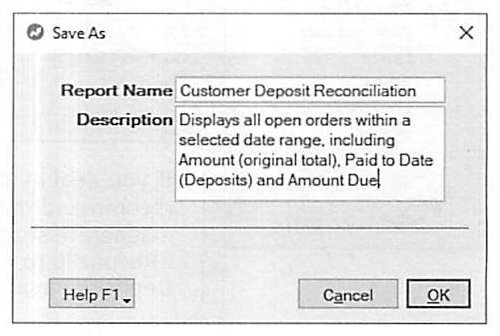
Businesses that do this regularly can Save As a Custom Report (e.g. "Customer Deposit Reconciliation") to skip re-customizing each period -- it then lives under Reports » Sales » Custom for one-click recall, can be Displayed, Sent To Excel for manual footing, or Printed, and can be pinned under the Favorites section of the desktop for even faster access. As an alternative (or supplement), Banking » Reconcile Accounts can also be used directly against the deposits liability account for a full outside-reader-friendly reconciliation report -- a Certified Consultant can help implement whichever approach fits.
Employer Accruals & Multi-Currency Considerations
Source: p.48-51
Employer Accruals (Payroll) as Entitlements: where local regulation or an employment contract makes accruals like Sick Pay or Vacation Pay a true entitlement (payable even upon termination), failing to recognize the expense in the period it's earned understates both expense and the related liability. Reports » Payroll » Employer Accruals surfaces the needed data (full procedure in the Payroll/Enhanced Payroll training guide).
Multi-Currency: businesses carrying meaningful foreign-currency balances need period-end procedures to verify the adequacy of each linked exchange account, since foreign balances fluctuate in home-currency value with the exchange rate. Realized Currency Gains/Losses are computed and recorded automatically by AccountEdge whenever a foreign-currency balance is settled (a deposit applied, a receivable paid, etc.), based on the difference between the entry-date and settle-date exchange rates -- though transfers between accounts of the same currency aren't automatically calculated this way, which is exactly what the Unrealized Gain/Loss process (below) sweeps up. If Realized Gain/Loss for a period looks significant, Reports » Accounts » Currency » Realized Gain/Loss shows the transaction-level detail (settle date, amount, original vs. payment exchange rate) for review, especially useful where management is removed from daily operations.
Unrealized Currency Gain/Loss should be recognized at each period end, particularly in a volatile FX market: (1) get current exchange rates (typically from the bank, often available online or by periodic email) and enter them under Lists » Currencies; (2) run Reports » Accounts » Currency » Unrealized Gain/Loss, which computes how much each foreign-currency Balance Sheet account's home-currency value has shifted due to rate changes; (3) record the result with a Journal Entry against each linked exchange account, closing the total to the Currency Gain/Loss Unrealized account. This is an accrual relevant only at that point in time and does not need to be reversed at the start of the next period. Finally, print and retain Reports » Accounts » Currency » Currencies List as documentation of the period-end rates used -- caution: this report can only be generated "as of today," so it must be run at the close of business on period-end day itself, with current rates already entered.
Reviewing Other Balance Sheet & Income Statement Accounts
Source: p.51-53
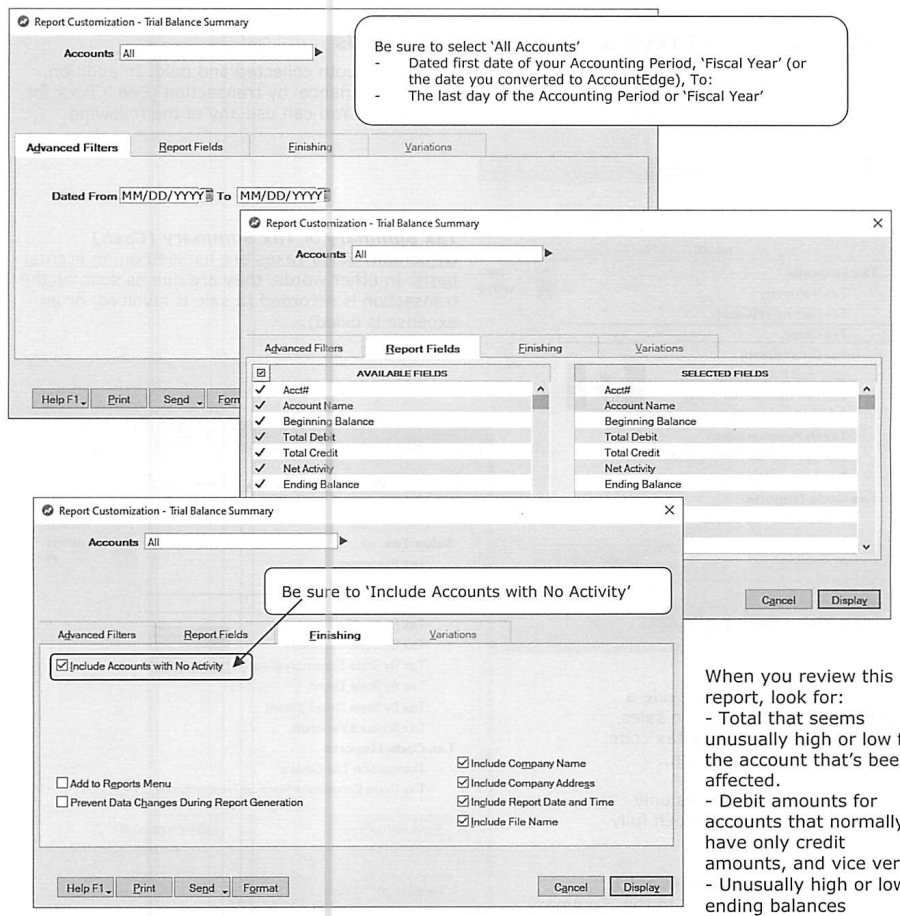
With the directly-verifiable accounts reconciled (bank, receivables, payables, inventory, currency), print a Trial Balance Summary (Reports » Accounts » General Ledger Trial Balance » Trial Balance Summary, "All Accounts," full period date range, "Include Accounts with No Activity") to sweep the remaining Balance Sheet accounts. Review for: unusually high or low totals relative to what's normal for that account; debit balances on accounts that normally only carry credits (or vice versa); and unusually high or low ending balances -- hovering over a questionable figure turns the cursor into a magnifying glass for one-click drill-down into Find Transactions. Once resolved, the guide notes this indirectly confirms the accuracy of the Profit & Loss bottom line too, per the earlier point about Balance Sheet changes always tying to P&L net profit for the same period. A second Trial Balance Summary pass reviews the individual Income Statement accounts the same way, one final time, to trap anything that crept in.
Remitting Sales Taxes and Other Trust Funds
Source: p.52-58
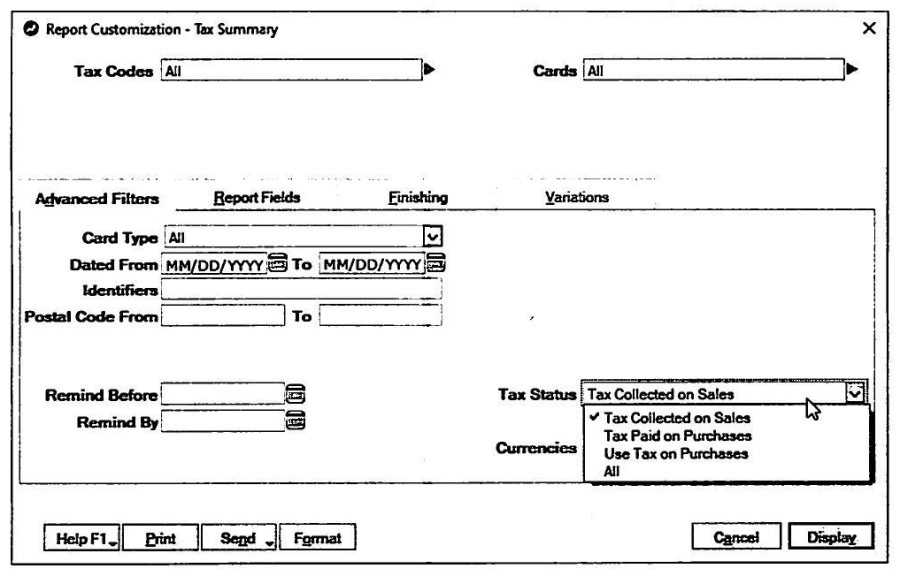
Tax Summary / Tax Summary (Cash), Tax Detail / Tax Detail (Cash), and Tax By State/Province Summary/Detail reports (Reports » Sales Tax) show tax charged on sales or paid on bills, sorted by tax code, for a date range -- the "Cash" variants include only fully-paid transactions. Receivables/Payables "Summary With Tax" reports (Reports » Sales/Purchases) help reconcile tax control accounts for cash-based tax reporting, but the guide flags a trap: these do not include prior-period transactions posted or modified after the last remittance, so uniform procedures and reconciliation back to Balance Sheet totals matter.
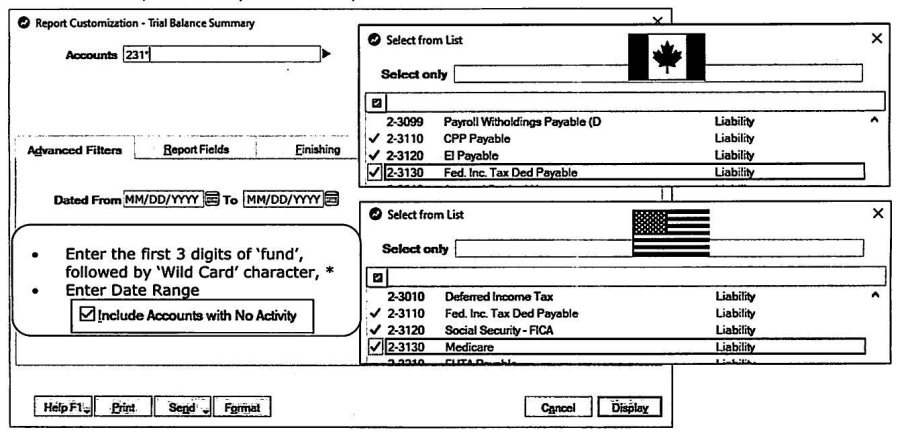
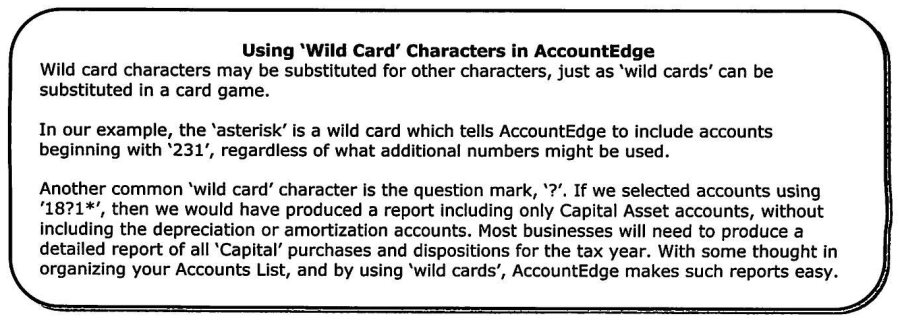
The guide's recommended structural fix, cross-referenced back to Setting It Up Properly: give each "trust fund" (each tax code, and each payroll withholding category) its own unique numeric range in the Accounts List, with tax codes and payroll categories properly linked to those specific accounts. Done this way, a single General Ledger Trial Balance (Summary or Detail) report, filtered with a wildcard (e.g. "231*" for a 2-31xx range) can reliably capture every tax-code and prior-period-adjustment amount for a given trust fund in one shot -- including amounts posted without a tax code at all, which the dedicated Sales Tax reports would miss. AccountEdge supports the standard SQL-style wildcards: * (any characters) and ? (single character) -- e.g. "18?1*" could isolate Capital Asset accounts while excluding paired depreciation/amortization accounts.
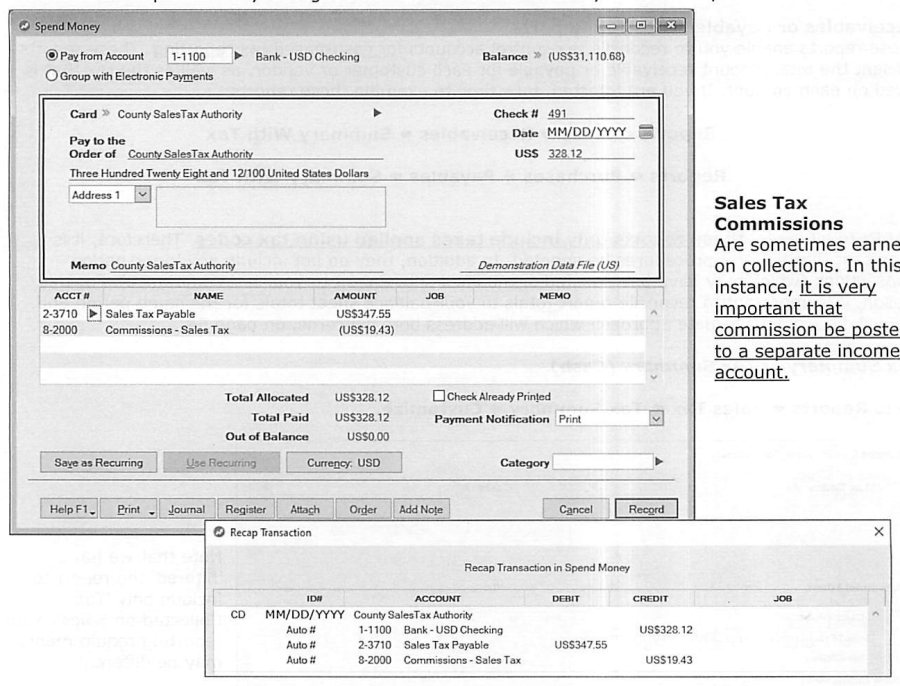
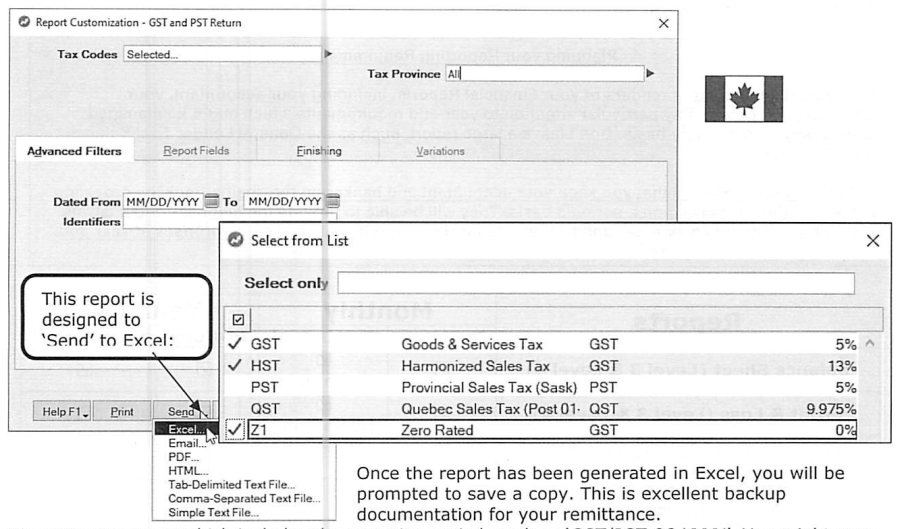
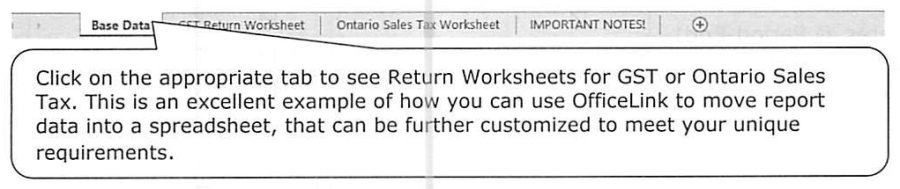
Canadian filers can generate the GST and PST Return report (Reports » Sales Tax » GST and PST Return), designed to export directly to Excel with return-worksheet tabs, useful as backup documentation for the actual remittance (the guide suggests a naming convention like "GST/PST Q2 YYYY" and a dedicated archive folder). Once amounts are confirmed, remitting is a normal Spend Money transaction against the relevant Sales Tax Payable liability account -- with a note that any sales-tax collection commission earned should post to its own separate income account, not net against the liability. Other Sales Tax reports (Tax Code Exceptions, Sales Tax Collected reconciliation using tax codes only) were introduced earlier under the Tax Exception Review and are worth a closer look if not already fully understood.
Period-End Reports & Locking Your Records
Source: p.58-60
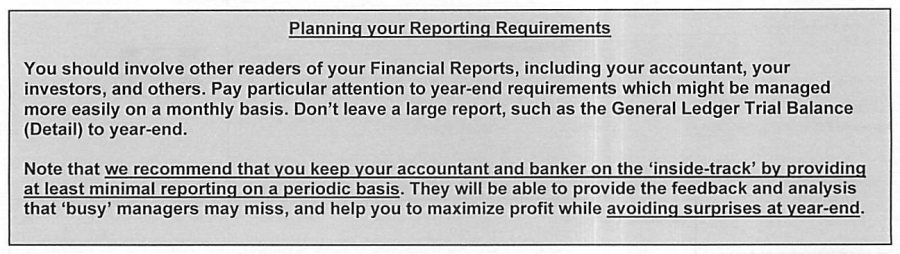
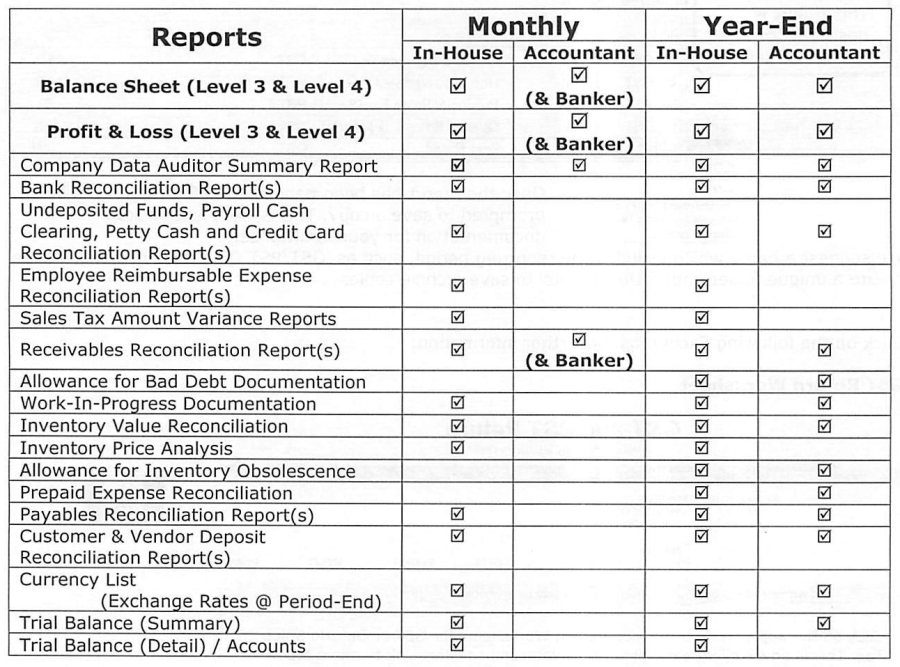
The guide provides a monthly-vs-year-end, in-house-vs-accountant reporting checklist covering Balance Sheet and P&L at Levels 3 & 4, the Company Data Auditor summary, every reconciliation report discussed above (bank, undeposited funds/payroll cash clearing/petty cash/credit card, employee reimbursable expenses, sales tax variance, receivables, bad debt allowance, WIP, inventory value and price analysis, obsolescence allowance, prepaid expenses, payables, customer/vendor deposits), the period-end Currencies List, and Trial Balance Summary/Detail -- recommending accountants and bankers be kept "on the inside-track" with at least minimal periodic reporting rather than surprised at year-end. Tip: Reports » Report Batches lets multiple reports be requested with a single selection.
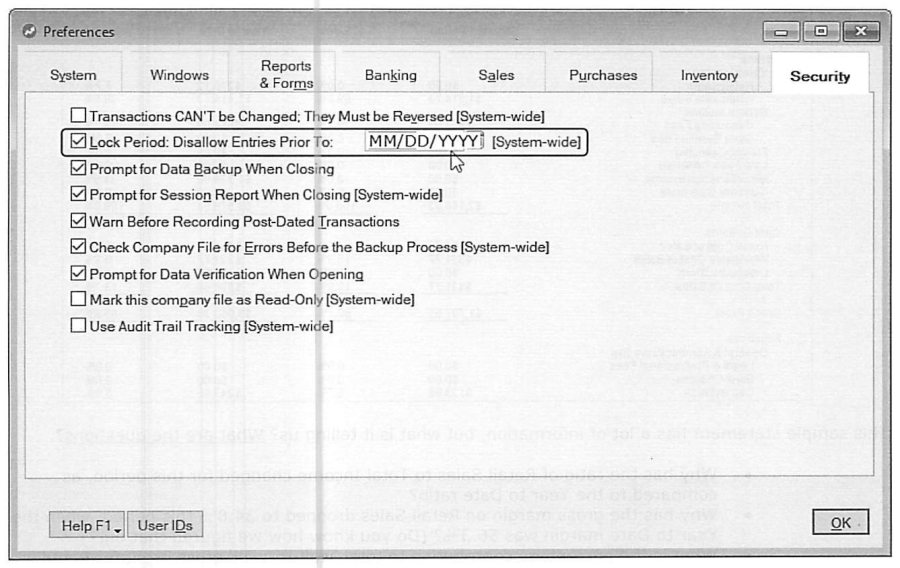
Once a period-end is validated, lock it down via Setup » Preferences » Security » "Lock Period: Disallow Entries Prior To," which maintains the integrity of everything up to that date and confines any future discrepancy investigation to current-period transactions only. AccountEdge allows posting into "Next Year" while deferring the actual year-end close, and the lock date can extend through the end of Next Year -- giving accountants room to complete their year-end review and adjusting entries before the books are formally closed.
Income Statement, Inventory & Time Billing Analysis
Source: p.60-63
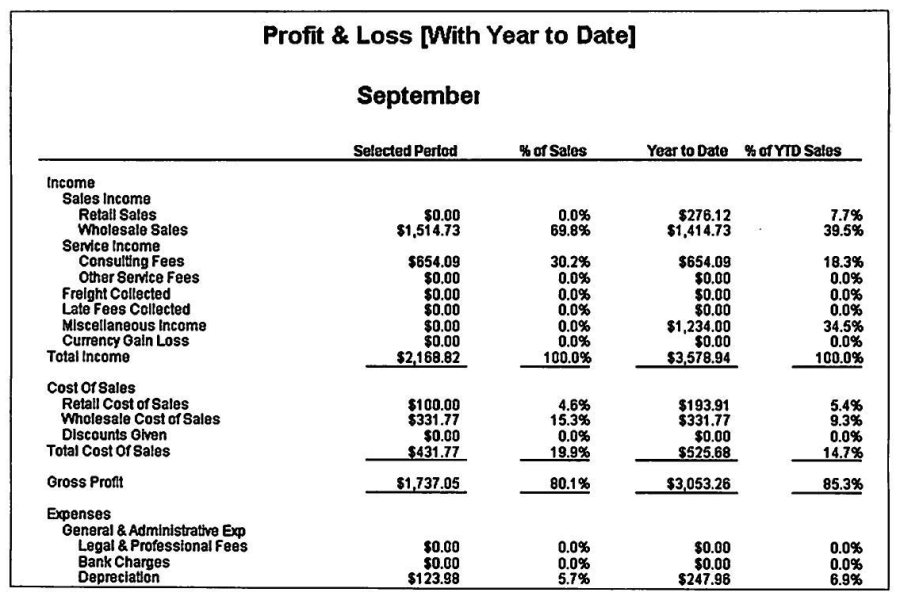
With balances verified, it's time to read what the statements are actually saying. The guide walks through a sample Profit & Loss (with Year-to-Date comparison) and models the kind of questions a manager should be asking of it: why did a sales category's share of Total Income shift this period versus YTD; why did its gross margin drop relative to the YTD figure; what's its percentage contribution to total gross profit, this period and YTD, and is that trend reasonable; and, given that contribution, is the related inventory investment appropriately sized. The larger point: once statements are accurate, the "customize" options on every report are where the real management value lives, and it's worth involving the Certified Consultant, accountant, and banker in interpreting what's found.
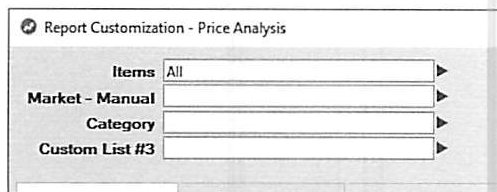
Inventory analysis covers both profitability and movement. The Price Analysis (Profitability) report (Reports » Inventory » Pricing » Price Analysis) computes Gross Profit, Margin %, and Markup % per item on either Average Cost (matching the Inventory Valuation Reconciliation Report) or Last Price basis (useful in a rising-cost market), filterable by the three Custom List fields. Stock turns matter separately from margin -- particularly for high-volume, low-margin inventory, where the framing shifts from "gross margin" to "return on investment" (the guide's example: a grocer makes little margin on a loaf of bread but turns that inventory investment hundreds of times a year). Time Billing analysis applies the same productivity/profitability lens -- of AccountEdge's 16+ Time Billing reports, the guide flags Employee Slip Summary, Productivity Hourly Summary, Rate Exceptions, and Activity - Analyze Sales as the minimum worth a monthly look.
Job Costing Considerations
Source: p.62-64
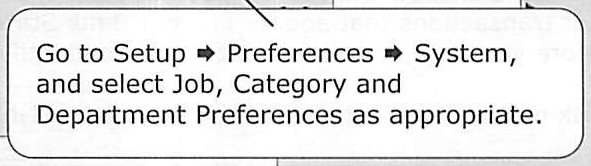
For project-based companies (construction and similar), a common trap is focusing so heavily on project-specific reports ("the trees") that the consolidated operation ("the forest") gets neglected -- assuming, for example, that averaging 35% gross across projects means the whole operation nets 35%, which the guide flatly says is "Not so!" Three tools manage the risk of expenses slipping through without a Job allocation: (1) the "Warn if Jobs Are Not Assigned to All Transactions" system-wide preference (Setup » Preferences » System); (2) the Job Exceptions reports (Cash Transactions / Invoice Transactions), which are part of the Company Data Auditor's Transaction Review and recommended monthly for every project-based business; (3) adding job-allocation fields to the regular period-end Trial Balance Detail report, since that report is already part of the routine anyway.
Where Jobs extend beyond the current fiscal year end, treat that as more than a short-term management concern -- review before processing the year-end close, and coordinate with the Purging and Start-a-New-Fiscal-Year guidance below to make sure needed job history and reporting detail isn't lost.
Purging Information & Reviewing/Adjusting Budgets
Source: p.63-65
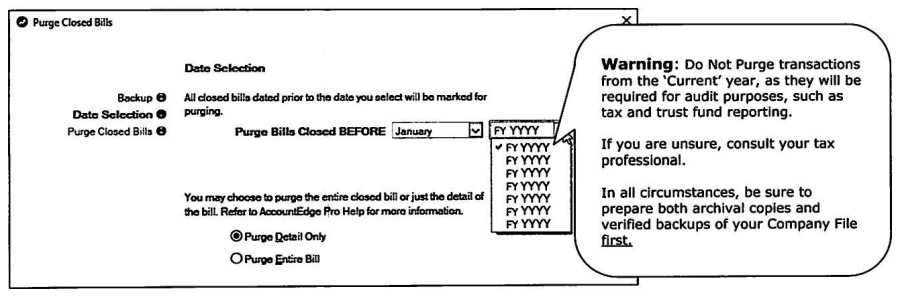
AccountEdge permits retaining closed transactions for up to seven years, but that data grows the file and can impede performance -- purging (File » Purge Transactions, per Command Center) reclaims the space. For Sales Invoices and Purchase Bills specifically, purging can remove full transactions or "detail only" (retaining ID, date, customer/vendor, shipping info, tax, freight, memo, and PO/bill number), and specific cards can be de-selected to retain all detail for particular customers/vendors. Each Command Center exposes its own purge exceptions (e.g. Accounts: receipts in Undeposited Funds, disbursements in Electronic Payments, unpaid Pay Liabilities Accruals, selected accounts; Sales: selected customers; Time Billing: activity slips for selected employees/vendors; Purchases: selected vendors; Payroll: timesheets for selected employees; Inventory: item movement for selected items; Card File: contact-log entries with recontact dates or for selected cards). Warning, verbatim from the guide: do not purge current-year transactions, since they're needed for audit purposes like tax and trust-fund reporting -- and always prepare both an archival copy and a verified backup before purging anything.
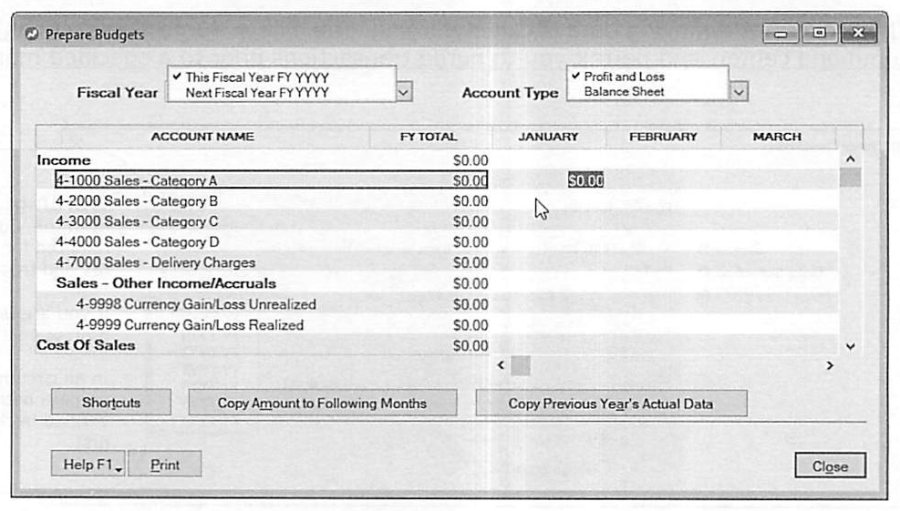
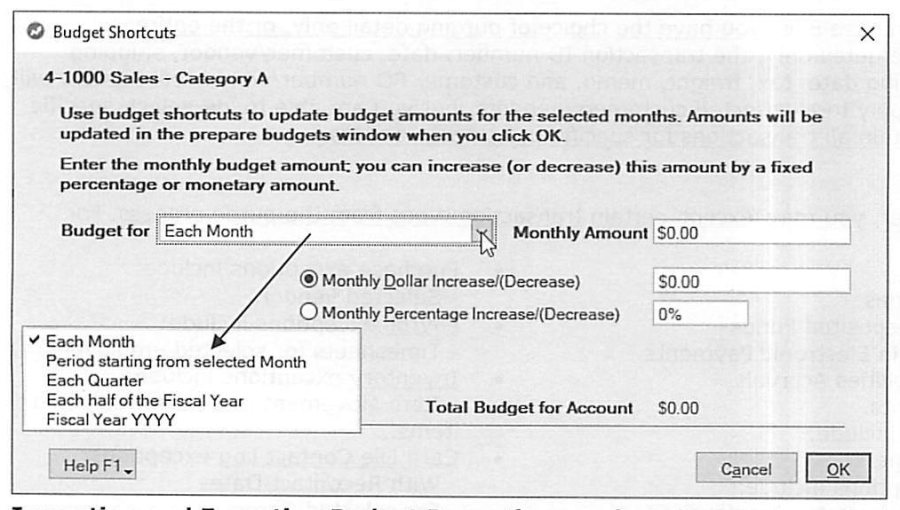
Reviewing and adjusting budgets: set up via Accounts » Accounts List » Budgets icon, for the current and next fiscal year, at the detail-account level. Entering every account's monthly figure can be a lot of work, so the guide suggests limiting it to management's designated "key accounts" rather than treating it as busywork -- "It is not to create a time-filling bookkeeping department." Budget Shortcuts speed entry across a range of periods (each month, each quarter, half-year, full year), with an option to apply a flat dollar or percentage increase/decrease month over month; budgets can also be imported/exported (e.g. via Excel) for those who prefer preparing them externally.
Verification and Optimization of Data File
Source: p.65-66
Verification should happen daily on exit, to catch file corruption early -- enforce this via Setup » Preferences » Security » "Check Company File for Errors Before the Backup Process" and/or "Prompt for Data Verification When Opening." The guide's rule of thumb, in its own emphasis: "TIME BETWEEN VERIFICATIONS SHOULD BE EQUAL TO THE DATA YOU ARE WILLING TO RE-INPUT SHOULD YOUR COMPANY FILE BECOME CORRUPTED... IT IS A SIGNIFICANT RISK-MANAGEMENT DECISION."
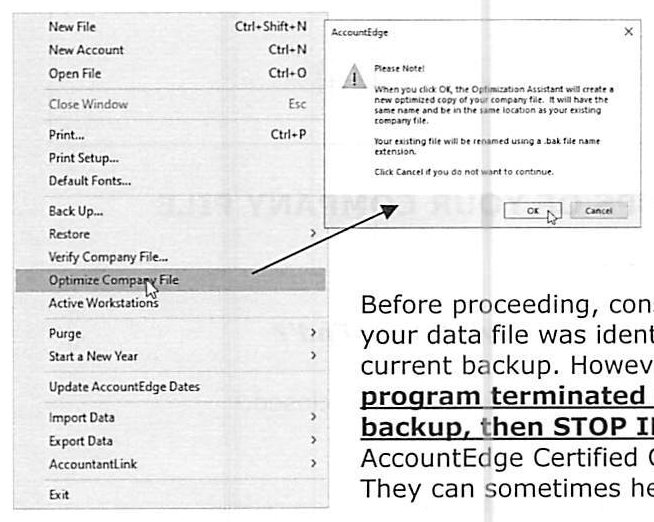
Optimization (File » Optimize Company File) is separate from verification: because AccountEdge is multi-user and doesn't immediately reclaim space from edited/deleted transactions (in case another user still has that data displayed), optimization physically recovers that space and rebuilds file indexes for performance -- and can even repair minor corruption. Recommended at least monthly, more often (weekly or daily) for very large files. Caution: never optimize a second time if problems are reported from the first attempt -- the pre-optimization file is renamed with a .BAK extension, and running optimization again destroys that safety copy. If an error suggests an actual data defect, the simplest fix is restoring the most recent verified backup; if the optimization process itself terminated early, or there's no current backup, stop immediately and contact a Certified Consultant or AccountEdge Support rather than improvising. Mac users are warned that desktop alias shortcuts may not auto-update to point at the newly-optimized file (since the old file becomes the .BAK) and must be manually refreshed -- NetworkEdition avoids this problem entirely.
Fiscal Year-End Considerations
Source: p.66-70
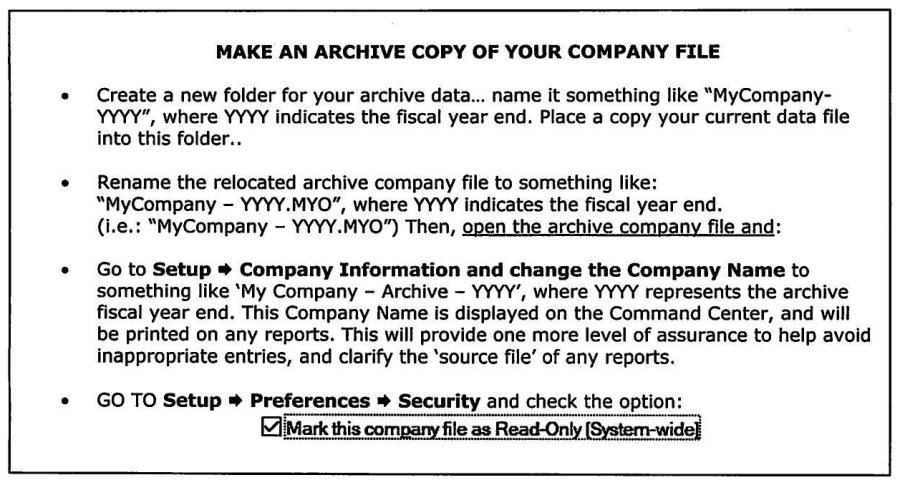
(1) Enter or import final adjusting transactions from the accountant, then print a Summary Trial Balance and confirm every ending balance agrees with the accountant's final trial balance. (2) Backups, three-step: make an archive copy in its own dated folder (e.g. "MyCompany-YYYY"), rename the archived file distinctly, and open the archive copy specifically to rename the Company Name (e.g. "My Company - Archive - YYYY," which shows on the Command Center and every report) and check "Mark this company file as Read-Only" -- then separately make at least two backups of the live working file to physical media. (3) If the fiscal year end differs from the payroll year end, note that AccountEdge will, by default, offer to retain paychecks from the year being closed regardless.
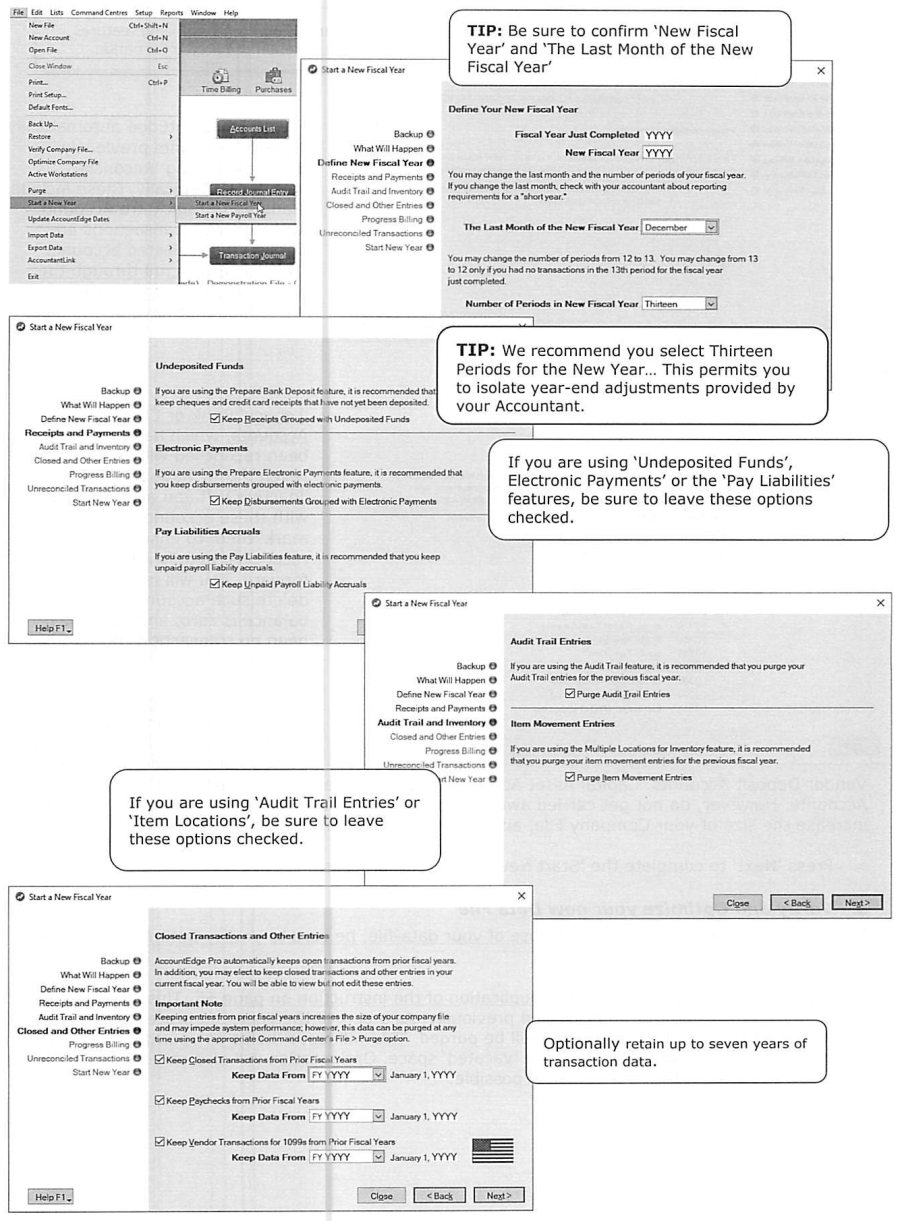
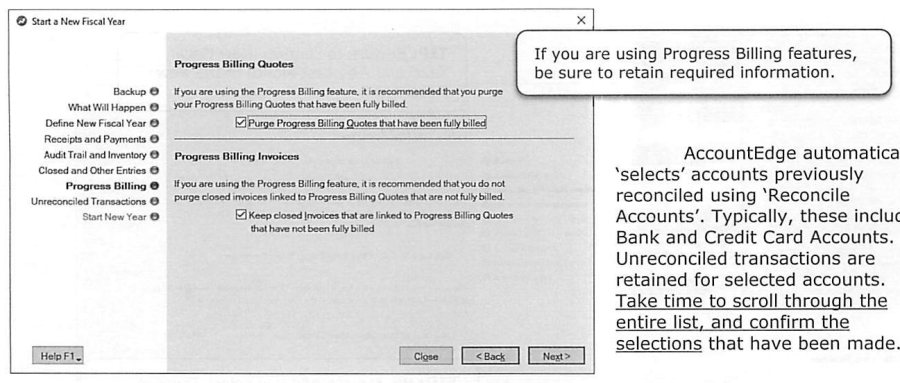
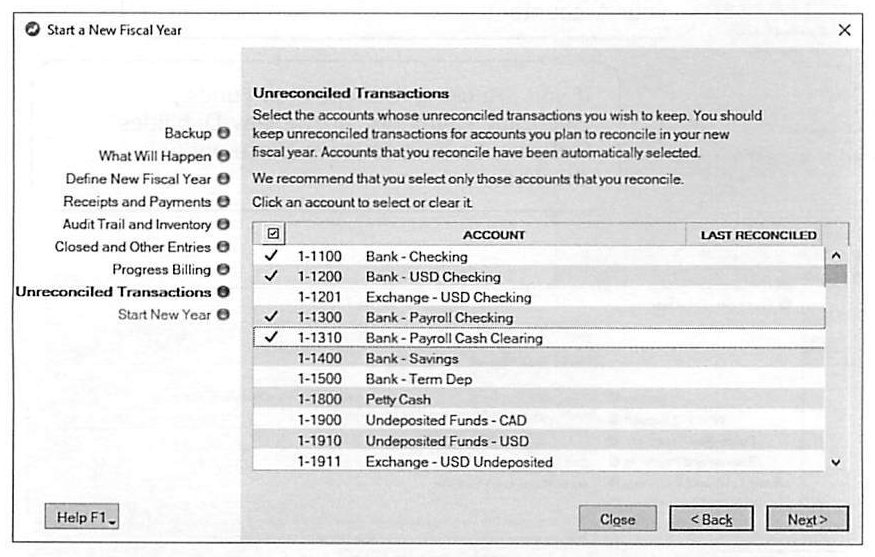
(4) Start a New Fiscal Year (File » Start a New Year » Start a New Fiscal Year) on the working copy walks through several screens worth knowing about: a backup prompt and a preview of what the process will do; defining the new fiscal year (last month, and whether to use 12 or 13 periods -- the guide recommends staying on Thirteen Periods for the new year specifically to isolate accountant-provided year-end adjustments, and 12-to-13 can only revert if there were no transactions in the prior 13th period); options to retain receipts still grouped with Undeposited Funds, disbursements grouped with Electronic Payments, and unpaid Payroll Liability Accruals (leave these checked if those features are in active use); options to purge Audit Trail entries and Item Movement (location) entries for the completed year, if those features are active; retention of closed transactions, paychecks, and 1099 vendor transactions from prior fiscal years, selectable up to seven years back; for Progress Billing users, options to purge fully-billed Progress Billing quotes while retaining closed invoices still linked to not-fully-billed quotes; and finally, a pre-selected list of Unreconciled Transactions to retain by account (accounts previously reconciled via Reconcile Accounts are auto-selected, including inactive "legacy" bank/credit-card accounts) -- the guide recommends keeping only accounts you actually intend to keep reconciling going forward, plus any account needing transaction history for review or audit (Customer/Vendor Deposits, Capital Assets, Prepaid Expenses, Trust Fund Liabilities), while cautioning against retaining more than genuinely useful, since it inflates file size and can hurt performance.
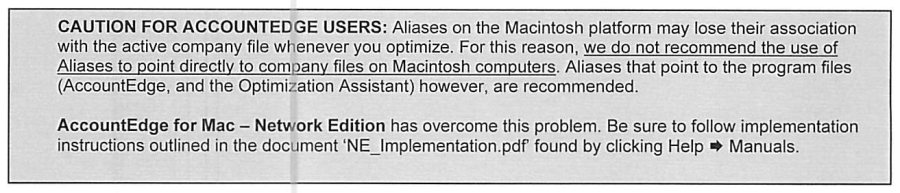
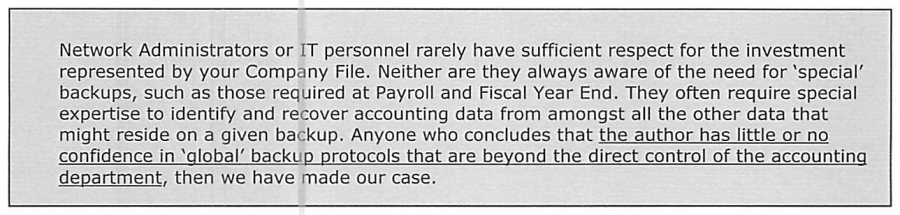
(5) Verify and optimize the new data file immediately after the year-end close -- this is explicitly in addition to regular monthly optimization, since the purge that happens as part of closing the year leaves substantial "holes" in the file that need reclaiming, and indexes need rebuilding for best performance. (6) Update desktop shortcuts/aliases on every workstation -- again flagging that Mac aliases pointing directly at a company file can lose their association after optimization, so the guide recommends aliases only to the program files themselves (not the data file) on Mac, with AccountEdge for Mac Network Edition solving this natively (see the NE_Implementation.pdf manual). (7) Update automated backup routines for year-end -- the guide's stated preference is Flash Drive/CD-R/RW/DVD-R/RW media with backup responsibility assigned to whoever owns the company file, cautioning that network/IT-managed "global" backup protocols often lack the specialized awareness needed for accounting data (recognizing Payroll- and Fiscal-Year-End-specific backup needs among everything else on a general backup). If backing up manually rather than through AccountEdge's own process, be sure to include the Custom, Forms, Letters, and Spredsht folders (if customized) and the Graphics folder (if images were added to inventory or card records), and to verify (daily) and optimize (monthly, minimum) on a schedule regardless of method.
Full topic index
All 70 pages, headings as they appear in the original course guide. Page numbers refer to the source PDF.
| Page | Topic |
|---|---|
| p.2 | Course Aims |
| p.7 | Cash Out-Flows (Disbursements) |
| p.9 | Profit and Loss (Income) Statement |
| p.10 | Balance Sheet Statement |
| p.11 | Company Data Auditor (see above) |
| p.13 | Transaction Review Process |
| p.14 | Scan for Prepaid Transactions |
| p.16 | Reports » Accounts » Audit Trail » Audit Trail Report |
| p.19 | Bank Reconciliation Procedures (see above) |
| p.20 | Recommended Procedures |
| p.21 | Open Reconcile Accounts Window |
| p.23 | Verify Bank Statement |
| p.27 | Check the "Out of Balance" Figure |
| p.29 | Reimbursable Expense Considerations |
| p.30 | Job Reimbursable Expenses -- Customer to Pay |
| p.31 | Receivables Reconciliation |
| p.33 | Work-In-Progress (WIP) Considerations |
| p.34 | Time Billing and Work In Progress (WIP) |
| p.35 | Inventory Issues and Work In Process (WIP) |
| p.38 | Printing a Period-End Inventory Valuation Reconciliation Report (see above) |
| p.39 | Inventory Value Reconciliation |
| p.41 | Reviewing Item Order Status |
| p.44 | Accrued A/P -- Inventory Reconciliation |
| p.45 | Customer Deposit Reconciliation |
| p.49 | Employer Accruals (Payroll) as Entitlements |
| p.51 | Record Unrealized Currency Gain/Loss in AccountEdge |
| p.52 | Reviewing Other Balance Sheet Accounts (see above) |
| p.53 | Reviewing Income Statement Accounts (see above) |
| p.55 | Remitting Sales Tax -- Spend Money |
| p.57 | Trial Balance Report (Summary or Detail) and Trust Funds (see above) |
| p.58 | Tax Reports -- GST and PST Return (Canada Only) |
| p.59 | Period-End Reports |
| p.61 | Income Statement Analysis |
| p.62 | Inventory Analysis (Movement / Profitability) |
| p.63 | Time Billing Analysis (Productivity / Profitability) |
| p.65 | Review & Adjust Budgets |
| p.66 | Verification and Optimization of Data File |
| p.67 | Fiscal Year-End Considerations (see above) |
| p.69 | Start a New Fiscal Year (see above) |